Fulfillment Checking
Fulfillment Checking verifies an order after it has been fulfilled. Instead of picking an open order, you scan a fulfillment that has already been created and confirm its contents item by item. It doesn’t matter where the fulfillment came from—Scanpacker, the Shopify admin, or a separate warehouse or shipping app.
That makes it useful in two ways: as your main barcode check when picking and fulfillment happen somewhere else entirely, or as an extra, ad-hoc check on top of the standard pick-and-check workflow.
When to use it
Use Fulfillment Checking:
- As your main check, when another app or your Shopify admin handles picking and label buying and you can’t change that flow.
- As an extra step alongside the standard workflow—spot-check orders before they’re handed to the carrier, or re-check a fulfillment when something seems off, like a customer complaint or a suspected mispack.
Your day-to-day pick-and-check flow is governed by your fulfillment mode; Fulfillment Checking works independently of it, so you can use both side by side.
How it works
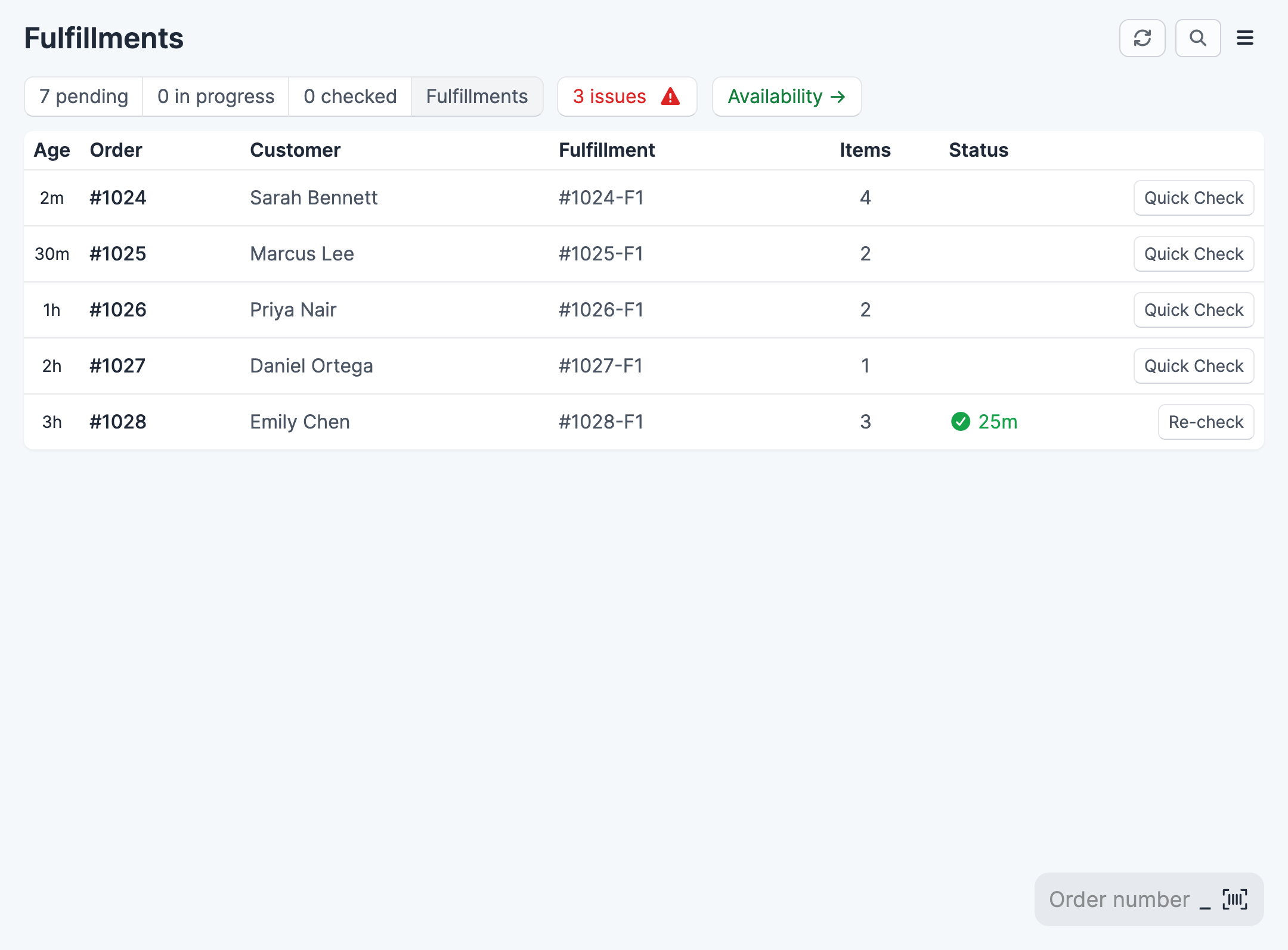
- On the order queue page, open the Fulfillments tab. It lists recent fulfillments created at your current location, including ones created outside Scanpacker.
- Start checking a fulfillment in one of two ways:
- Click the Quick Check button next to the fulfillment you want, or
- Scan an order number to jump straight to its fulfillment.
- If the order has more than one fulfillment, choose the one you want to check.
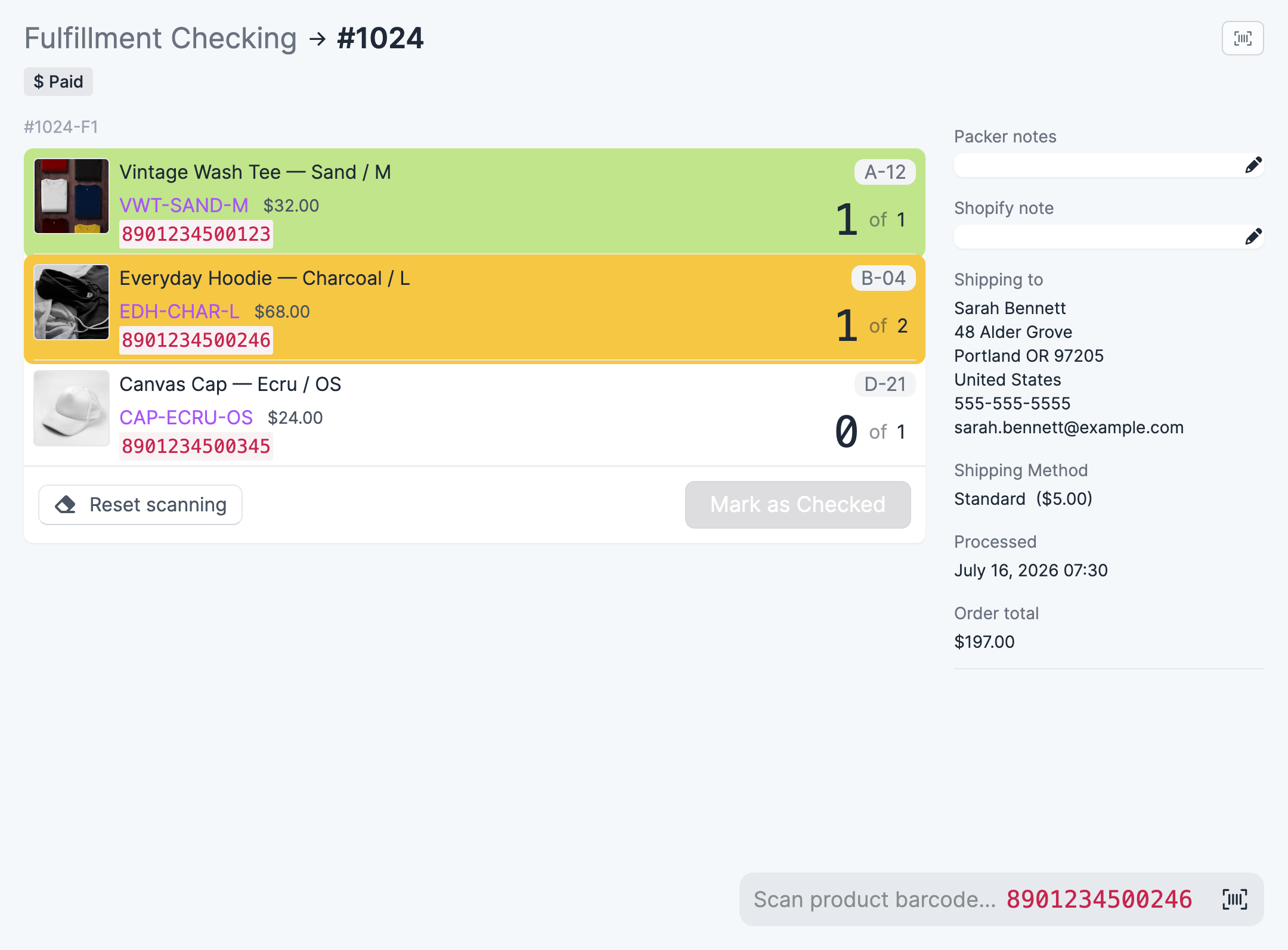
- Scan each product’s barcode. Scanpacker checks the items against what was fulfilled.
- When every item is checked, click Mark as Checked.
Fulfillments that have already been checked show when they were checked in the Status column, with a Re-check button in case you need to verify them again.
After a check is complete
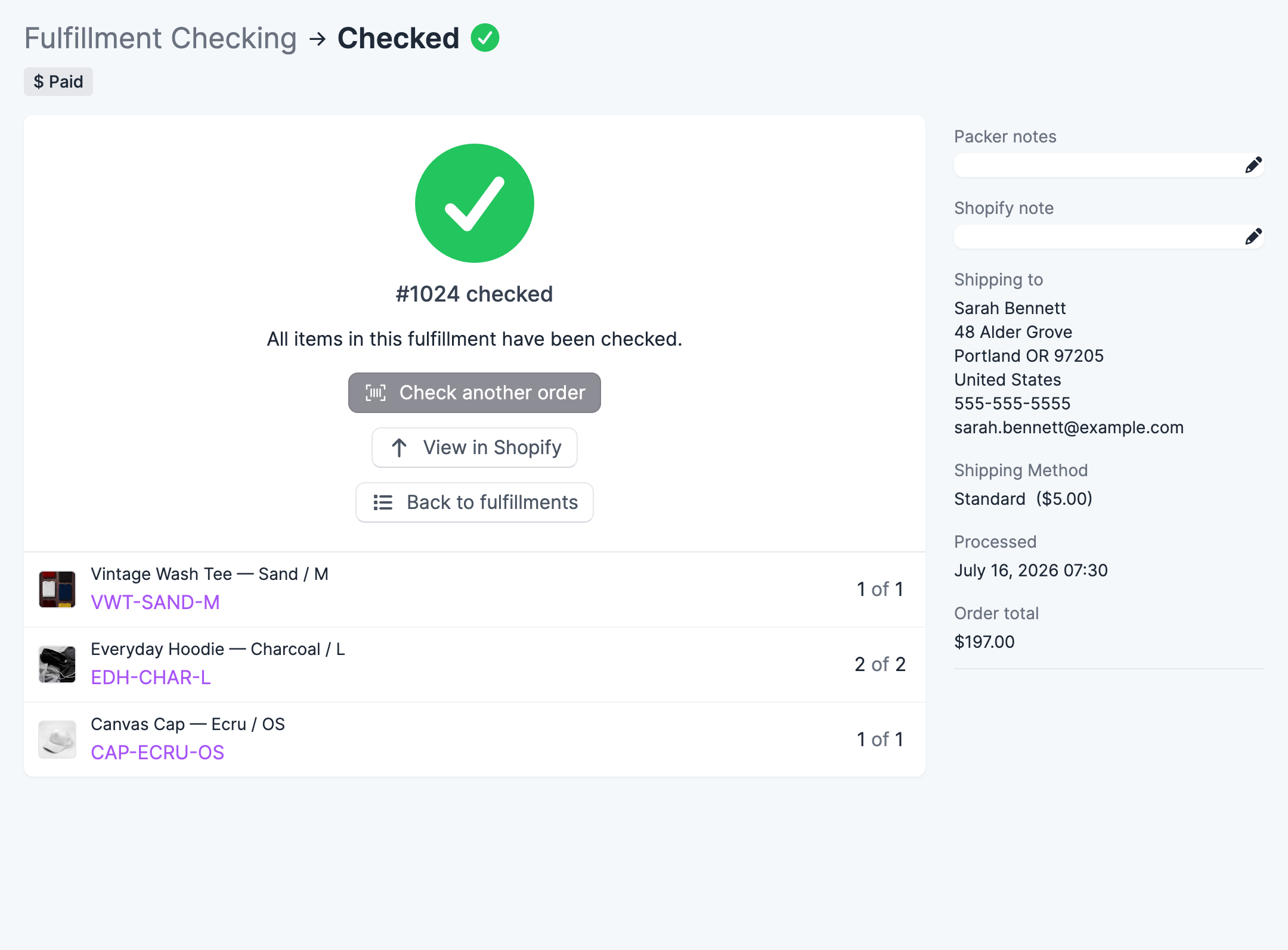
Once you’ve scanned every item and clicked Mark as Checked, Scanpacker shows a “Checked” confirmation screen listing the items you verified. From here you can:
- Check another order — return to the scan prompt to check the next fulfillment.
- View in Shopify — open the order in your Shopify admin.
- Back to fulfillments — go back to the Fulfillments list.
Because the fulfillment already existed, checking it doesn’t change anything in Shopify—nothing is picked, fulfilled, or re-fulfilled. The check is purely a verification that the right items were packed.
Availability and permissions
Fulfillment Checking is a newer capability that isn’t switched on for every account, and it needs the Perform fulfillment checks permission. If you’d like to use it, contact support or ask an administrator to set it up.
Related documentation
- Fulfillment modes — how Scanpacker behaves after you check an order you picked here
- Checking orders — the core pick-and-check workflow
- Roles and permissions — granting the Perform fulfillment checks permission
- Barcodes — setting up product barcodes