Roles and permissions
Roles and permissions control what each member of your team can see and do in Scanpacker. You assign each user a single role, and that role decides which pages and actions they can use—from picking orders to changing settings.
This page explains the built-in roles, how to create your own, and how to assign roles to your team.
How roles work
- Every user has one role.
- Each role grants a set of permissions—for example, “View orders” or “Manage settings”.
- Roles are managed per store. Each Shopify store has its own roles and assignments.
- To give someone more or less access, change their role (or edit the role’s permissions).
The built-in roles
Scanpacker sets up six roles for you. You can edit or delete any of them except Administrator, or use them as-is.
| Role | Good for | What it can do |
|---|---|---|
| Administrator | Store owner | Everything, always |
| Manager | Senior staff | Everything except managing roles, user login access, and the subscription |
| Supervisor | Shift lead | Pick and ship orders, manage batches, edit barcodes, warehouse locations and packer notes, run fulfillment checks, raise and resolve order issues, view activity |
| Operator | Experienced packer | The same as Supervisor, but can only raise order issues (not resolve them) |
| Packer | Warehouse picker | View and pick orders, pick batches, run fulfillment checks, raise order issues |
| Viewer | Read-only access | View orders only |
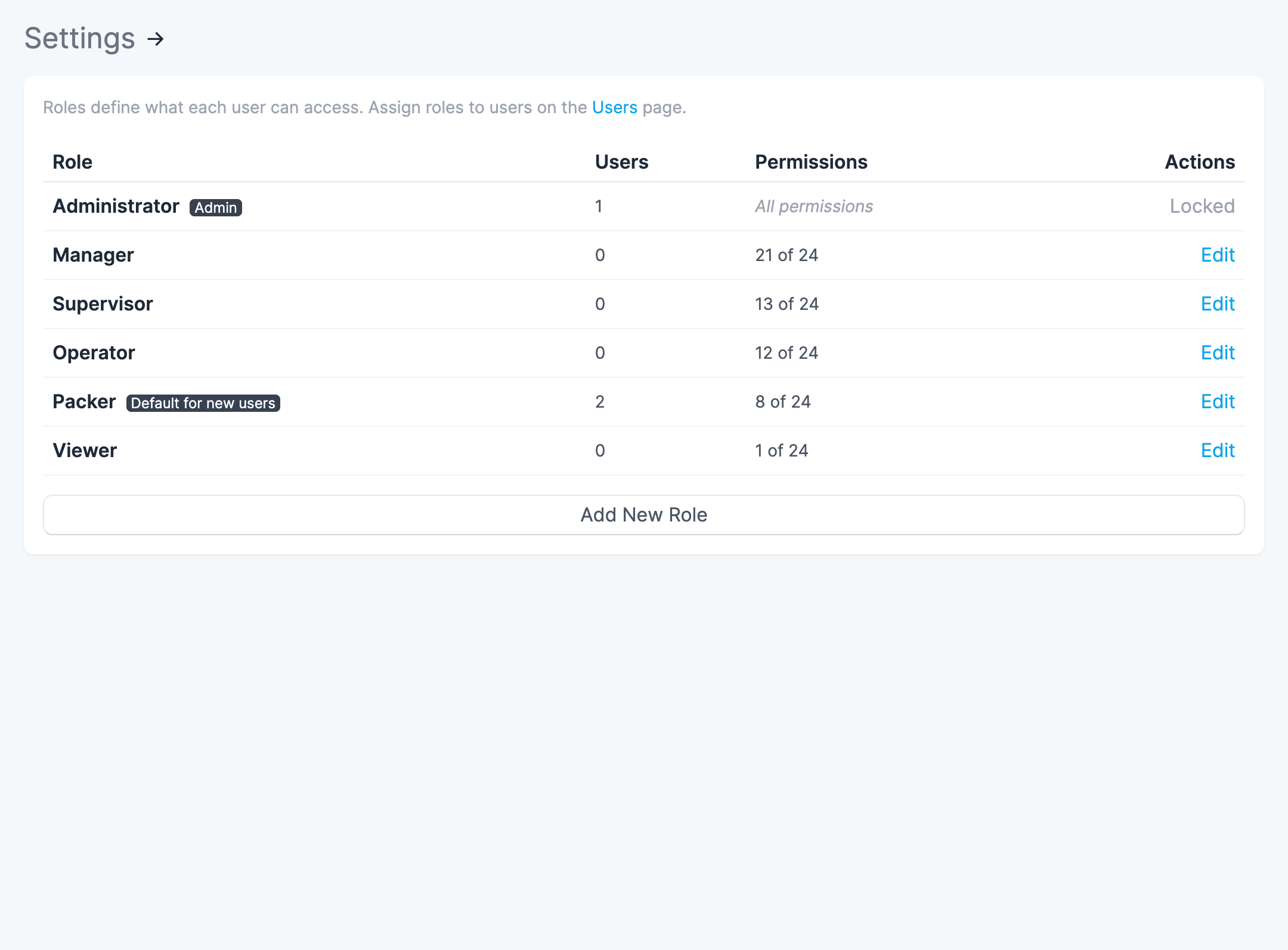
The Administrator role
The Administrator role is special:
- It always grants every permission, including any new permissions added to Scanpacker in the future.
- It can’t be edited, renamed, or deleted.
- At least one user must always be an Administrator. Scanpacker won’t let you move the last administrator to another role.
What each permission controls
When you create or edit a role, you’ll see permissions grouped into sections. Here’s what each one covers.
Order operations
- View orders — see the order list and order details.
- Pick orders — scan and pick items on an order.
- Ship orders — buy labels, create packages, and mark orders shipped.
- Edit order notes — add or change notes on an order.
Batch operations
- Manage batches — create and organize batches.
- Pick batches — scan and pick items within a batch.
Product and warehouse data
- Edit barcodes — change the barcode for a product.
- Edit warehouse locations — change where a product is stored.
- Manage packer notes — add or edit notes shown to packers.
- Import data — upload data into Scanpacker.
- Export data — download data out of Scanpacker.
Order issues
- Raise order issues — flag a problem with an order.
- Resolve order issues — clear a flagged issue.
Fulfillment checks
- Perform fulfillment checks — run a fulfillment check on an order.
Shipping configuration
- Manage carriers — set up and edit carriers.
- Manage parcel templates — set up and edit parcel templates.
Printing and templates
- Manage templates — create and edit print templates.
- Manage printers — set up and edit printers.
Settings and automation
- Manage settings — change Scanpacker’s settings.
- Manage automation — set up processing rules, automated printing, and automated tabs. (These are all covered by this one permission.)
Account
- Manage roles — create and edit roles.
- Manage user login access — add users and manage their login access and passwords. See managing users.
- View activity — see the activity log.
- Manage subscription — change the Scanpacker plan and billing.
Creating and editing roles
You’ll find roles under Settings > Roles.
Create a new role
- Go to Settings > Roles.
- Click Add New Role.
- Give the role a name (for example, Warehouse Lead or Shipping Clerk).
- Tick the permissions you want the role to grant.
- Click Save.
Edit a role
- Go to Settings > Roles.
- Click Edit next to the role you want to change.
- Tick or untick permissions, or rename the role.
- Click Save.
Changes apply right away to everyone assigned to that role.
Delete a role
You can only delete a role that has no users assigned to it. If a role is in use, move those users to another role first.
- Go to Settings > Roles.
- If the role has no users, click Delete next to it.
- Confirm.
Note: The Administrator role can’t be deleted.
Assigning roles to users
You assign roles under Settings > Users.
- Go to Settings > Users.
- Click Edit next to the user you want to change.
- Pick a role from the Role dropdown.
- Click Save changes.
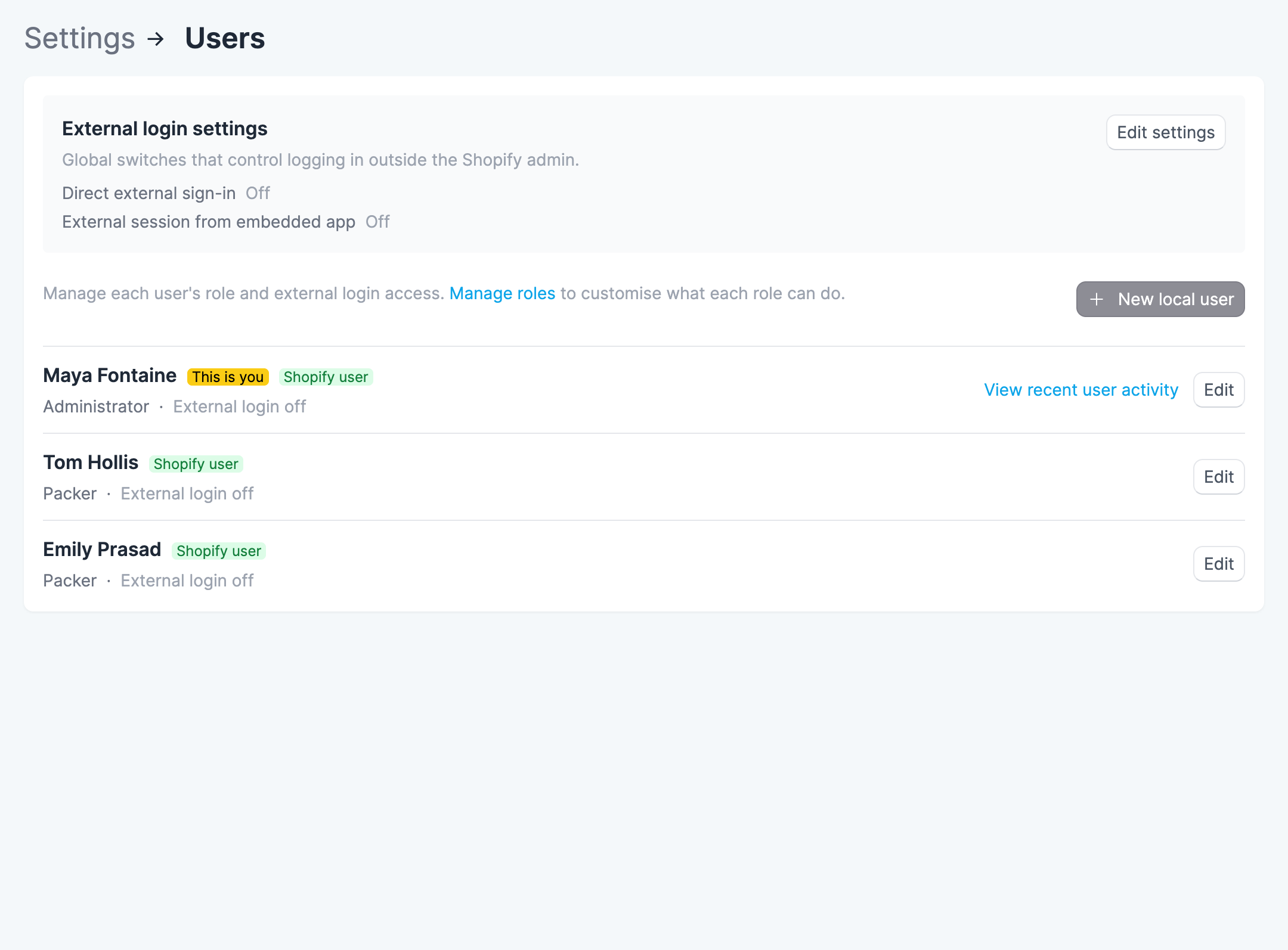
From the Users page you can also view a user’s recent activity. To learn how to add team members who don’t have Shopify staff accounts, see adding users.
How new users get a role
- The first user in a store (the person who installs Scanpacker) becomes the Administrator.
- New team members added later start as a Packer, the role with the least access. An administrator can then move them to the right role.
If you set up roles before this feature existed, your users were given roles automatically: the oldest user became the Administrator, and everyone else became a Manager so their day-to-day access stayed the same.
Questions?
If you need help setting up roles for your team, get in touch.