Templates
Scanpacker comes with a built-in template for a packing slip that is identical to Shopify’s default packing slip. In fact, Scanpacker’s template system is fully compatible with Shopify’s. Therefore, if you have customised the packing slip template in the Shopify admin, you can simple copy and paste your changes straight into Scanpacker.
Resources:
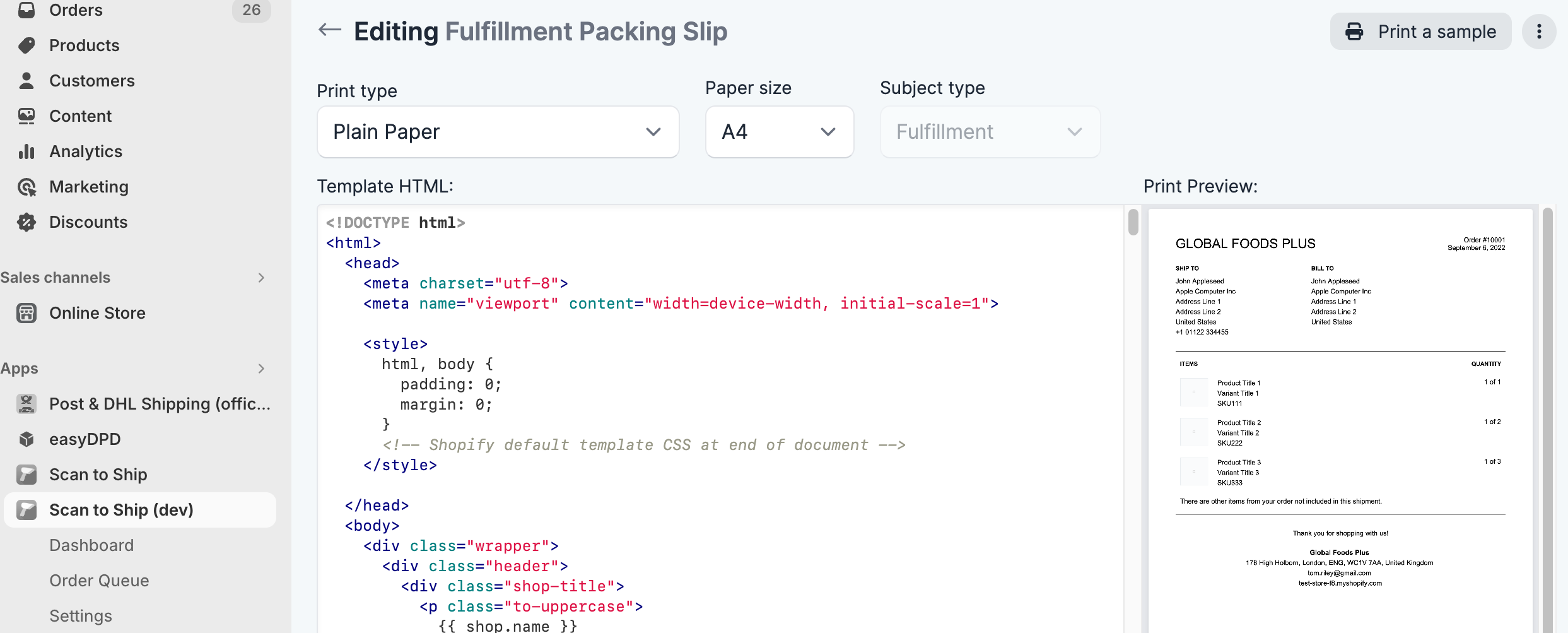
Start your own template from a built-in one
To change a built-in template beyond the options in its settings panel, make your own copy of it and edit the code.
- Open the built-in template.
- Click the cog menu and choose Duplicate template.
- Give the copy a name and click Create Template.
Your copy keeps any options you chose for the built-in template. It opens in the code editor, where you can change the HTML or ZPL and the Liquid freely. Each option becomes a line near the top of the template with a name that starts with var_, for example {% assign var_font_size = 14 %}.
Your copy is separate from the built-in template. When we improve a built-in template, your copy stays as it is.
[Screenshot: the cog menu on a built-in template, with Duplicate template highlighted]
Two-sided printing
Each document template has a Two-sided printing setting. Choose one-sided, two-sided (long edge), or two-sided (short edge). Leave it on Printer default to use your printer’s own setting.
When a two-sided template prints several orders at once, each order starts on a new sheet. Your printer must be able to print on both sides. On Windows, you need Print Connector 1.0.53 or later.