Stations
A station is a work area in your warehouse, such as a packing bench, with its own set of printers. Each computer, tablet, or phone that uses Scanpacker chooses its station once. After that, everything printed from it goes to the station’s printers, whoever is signed in.
This page explains how to set up stations, how to choose a station on a computer, tablet, or phone, and who can manage stations.
How stations work
Each station has a name and one printer for each print type. For example, a station called Packing bench 2 might use:
- a Zebra label printer for shipping labels and barcode labels
- an office printer for packing slips and invoices
When someone at that bench prints a packing slip, or Scanpacker prints one automatically, it goes to the station’s office printer.
The printers must be connected through Scanpacker Printer Connect before you can add them to a station.
Set up a station
- Go to Settings and then Stations.
- Click Add station.
- Enter a name for the station, such as Packing bench 2.
- Choose a printer for each print type.
- Click Save station.
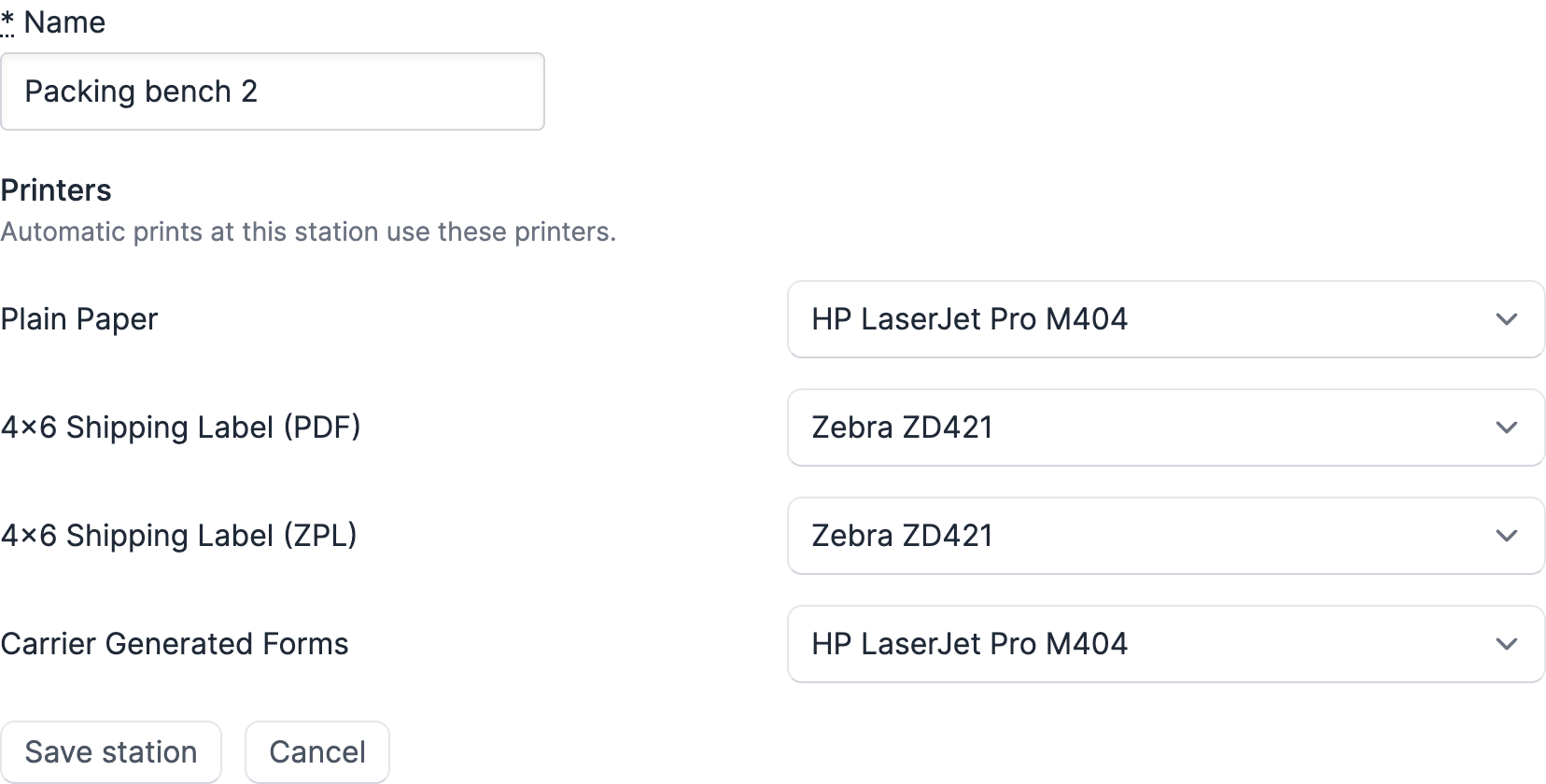
If you leave a print type without a printer, the station shows a printers missing badge. Documents of that type can’t be printed at that station until you choose one.
To change a station’s printers later, go to Settings, Stations, and click Edit next to the station.
Choose a station on a device
If your shop has only one station, Scanpacker uses it on every device and you don’t need to choose.
Once you have two or more stations, each device asks you to choose one before you start packing. To see or change it later:
- On the order queue, open the cog menu and choose Station.
- If you use Scanpacker in its own browser tab, click the station in the navigation menu. Your current location is shown underneath.
- In the iPhone and Android apps, tap the station at the top of the Orders screen.
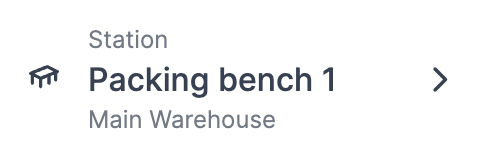
Then click the station you want.
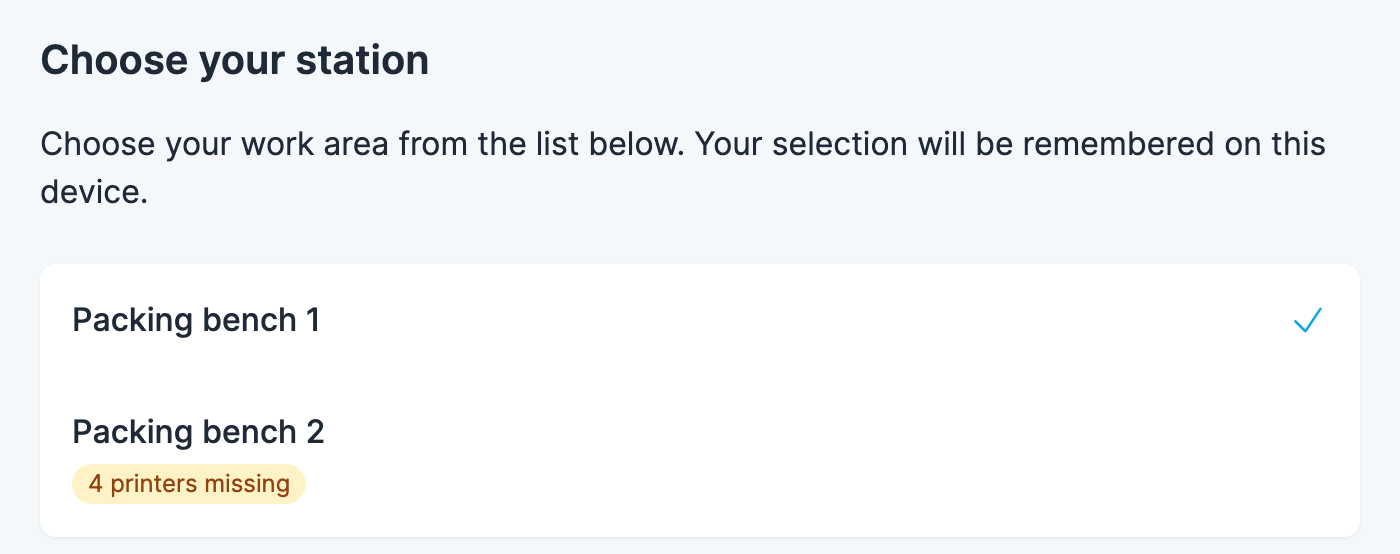
Scanpacker remembers the station on that device, in that browser or app. Other devices are not affected, so a tablet at the packing bench and a computer in the office can use different stations.
A station is not tied to a location. Changing your location doesn’t change your station, and choosing a station doesn’t change your location.
Print to a different printer once
When you print a document by hand, you can choose a different printer for that one print. This does not change the station’s printers.
Prints that happen later
Some prints happen after the work is done, for example when an order is fulfilled outside Scanpacker. These use the station where the order was checked, not the station of whoever is signed in at the time.
If Scanpacker doesn’t know where an order was checked, it uses your station if your shop has only one. Otherwise it skips the automatic print rather than guess.
Who can manage stations
Only users whose role has the Manage printers permission can add, edit, or delete stations. Anyone can choose a station on their device.
Without the permission, Stations is greyed out in Settings. See Roles and permissions to change what a role can do.