Managing users
Scanpacker has two kinds of users: Shopify staff who open the app from the Shopify admin, and local users you create yourself. This page explains the difference and walks through adding a local user.
Two kinds of users
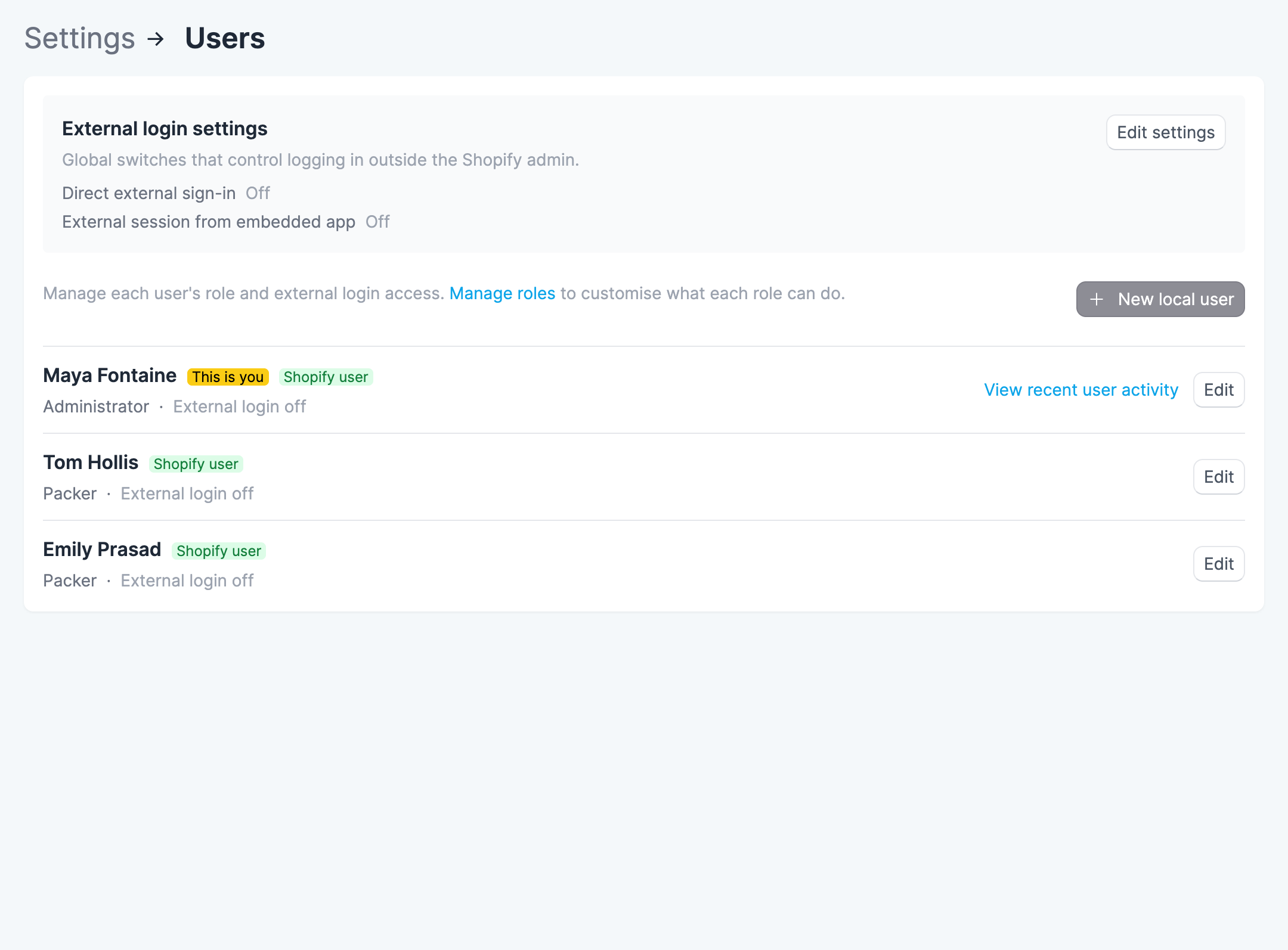
- Shopify staff users are created automatically. The first time one of your Shopify staff opens Scanpacker from the Shopify admin, Scanpacker adds them as a user. The new account starts with a blank display name and the default Packer role, so you’ll usually want to set a few things up (see setting up a new staff user below).
- Local users are accounts you create in Scanpacker that aren’t tied to a Shopify staff account. They sign in outside the Shopify admin with a username and password, and can do full warehouse work—picking, packing, and shipping.
Local users are useful for warehouse staff who pack and ship but don’t have, or shouldn’t have, access to your Shopify admin.
Setting up a new staff user
When a Shopify staff member opens Scanpacker for the first time, their account is created automatically—but it starts bare. Go to Settings > Users, click Edit next to them, and set up:
- Display name — the account starts blank, so set a name to identify who did what in the activity log.
- Role — new users default to Packer. Choose the role that matches what they should be able to do. See roles and permissions.
- Username and password — only needed if this person will also sign in outside the Shopify admin. Otherwise they just open the app from Shopify and you can leave these blank.
Before you start
To add local users, you’ll need:
- The Manage user login access permission. Only the Administrator role has it by default, but you can grant it to other roles. See roles and permissions.
- Direct external sign-in turned on for your store, so the accounts can actually sign in. See external login settings below.
You’ll find everything under Settings > Users.
Add a local user
- Go to Settings > Users.
- Click New local user.
- Enter the person’s name.
- Choose a role. This controls what they can do in Scanpacker. New users default to Packer. See roles and permissions.
- Enter a username. Usernames can use lowercase letters, numbers, and the characters
._-, and must be unique within your store. - Set a password. Click Generate password to create a strong one, then use the copy button to save it somewhere safe.
- Click Create user.
Important: Copy the password before you save—Scanpacker can’t show it to you again afterwards. If it’s lost, you can set a new one anytime by editing the user.
Once created, the user can sign in on the Scanpacker login page with your shop domain, their username, and their password. See ways to access Scanpacker for how they sign in.
Edit a user
From Settings > Users, click Edit next to any user. On the edit page you can:
- Change their name.
- Change their role.
- Turn external login on or off.
- Set or change their username and password.
Turning off external login blocks the user from signing in outside the Shopify admin, but keeps their password on file—so you can switch access back on later without setting a new one.
Note: Users can’t reset their own passwords. Only someone with the Manage user login access permission can set or reset a password.
Delete a user
You can delete local users, but not Shopify staff users. (A Shopify staff user is re-created automatically the next time they open the app, so removing them has no effect.)
- Go to Settings > Users and click Edit next to the local user.
- Click Delete user and confirm.
Their past work—such as orders they packed and labels they bought—stays on record.
External login settings
Two store-wide switches control access from outside the Shopify admin. You’ll find them under Settings > Users, by clicking Edit settings:
- Allow direct external sign-in — lets provisioned users sign in with a shop domain, username, and password. This must be on for local users (and any other external logins) to work.
- Allow starting an external session from the embedded app — shows the option to open a logged-in session in an external browser from inside the Shopify admin.
[Screenshot: External login settings showing the two toggles]
To learn how each access method works, see ways to access Scanpacker.
Questions?
If you need a hand setting up your team, get in touch.