Picking cart setup
A picking cart lets you collect items for several orders in one pass through your warehouse. This guide will help you choose a cart and set it up for batch picking.
Do you need one? That depends on the batch picking mode you use:
- Guided picking requires a cart with barcode-labelled slots — one cart slot per order in the batch. This is the setup described on this page.
- Pick list mode needs no special equipment. If you tick Assign totes when starting a batch, each order gets its own tote, but any bins, trays, or boxes will do — tote names are just a guide and don’t need labels or barcodes.
If you’re trying batch picking for the first time, you can start with pick list mode and set up a cart later.
Choosing a picking cart
When selecting a picking cart for your warehouse, consider:
- Number of tiers/shelves - More shelves allow larger batch sizes
- Bin/tote capacity - Each cart slot needs sufficient space for typical order volumes
- Mobility - Smooth-rolling wheels and good maneuverability for navigating warehouse aisles
- Durability - Heavy-duty construction for daily use
- Size - Must fit through your warehouse aisles while providing adequate storage
Example picking carts
Here are some examples of carts that work well for batch picking:
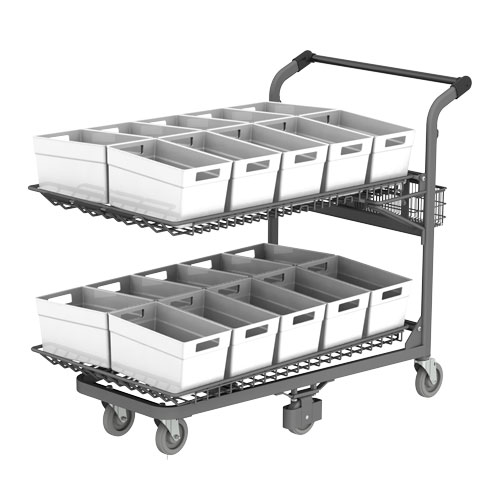
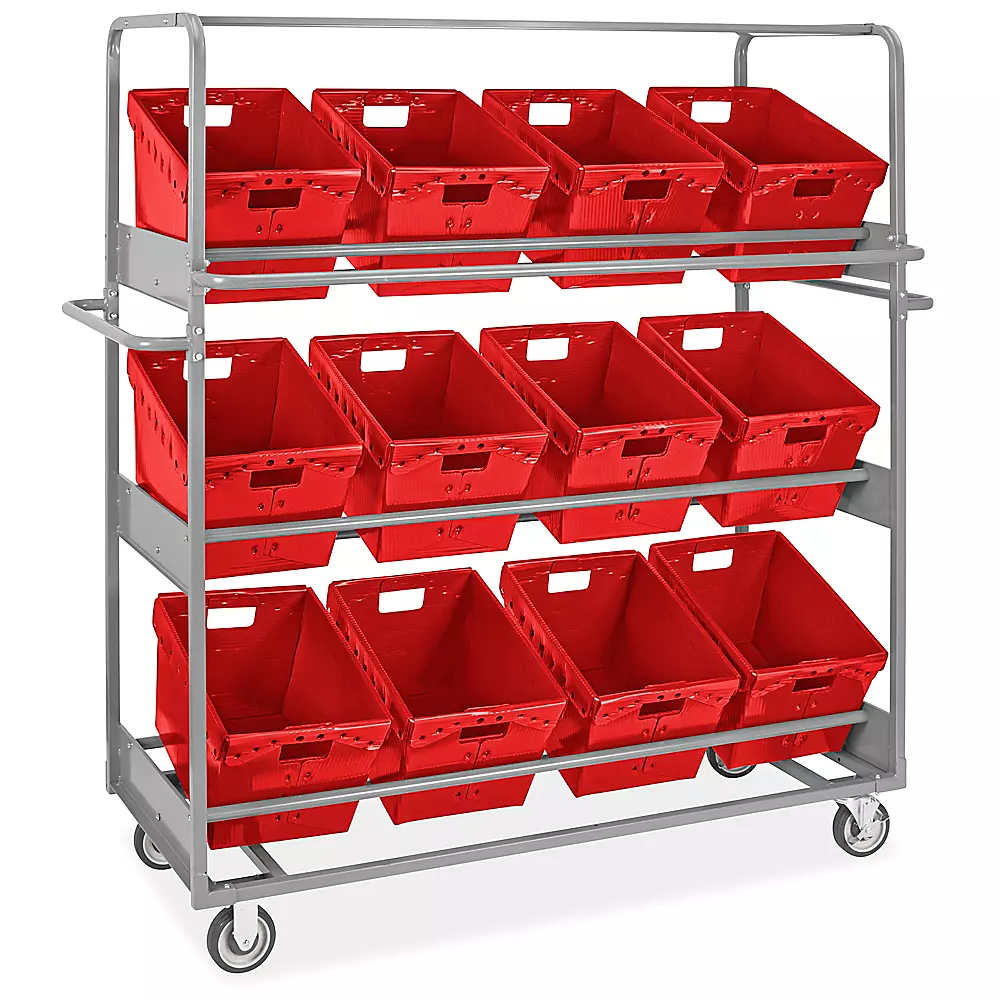
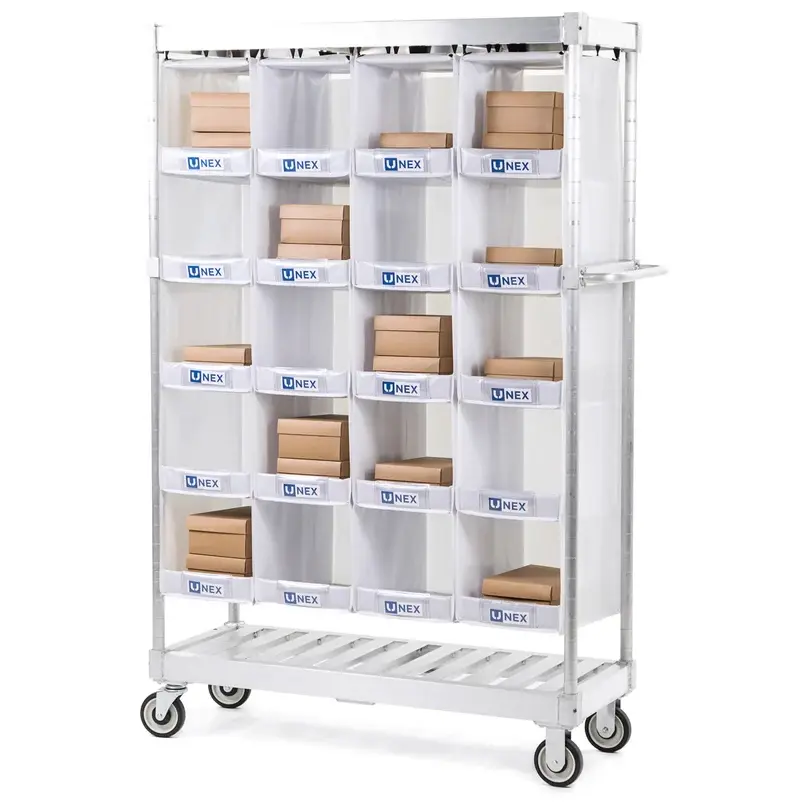
Cart organization
Labelling cart slots
- Give each bin or shelf position a short, readable name (A1, A2, B1, B2, etc.) — no spaces, and 10 characters or fewer
- Enter the same names, in the same order, as a cart type in Scanpacker: Settings → Batch Picking → Manage cart types
- Click Print slot labels on that cart type to print a barcode label for each slot
- Attach the labels where they’re easy to see and scan — consistent positions on every slot
- Consider color-coding tiers or sections for visual organization
Using more than one kind of cart
Each cart type is a separate slot layout, so carts of different sizes can be in use at the same time. Set up one cart type per kind of cart — a four-bin cart and a twelve-bin trolley, say — and print each one’s labels from its own page.
Identical carts can share a cart type: the labels are the same on every one of them, and two pickers running separate batches on matching carts won’t get in each other’s way. Give each cart type a name that describes the cart rather than the picker using it.
Layout best practices
- Arrange slots in a logical pattern (left-to-right, top-to-bottom)
- Keep frequently accessed positions at comfortable height
- Reserve bottom shelf for larger or heavier items
- Designate specific slots for packing materials if needed
How the cart is used during guided picking
- When you start a guided batch, you choose the cart type you’re using, and each order is assigned to one of that cart’s slots.
- As you pick, you scan each item and then scan the barcode label of the slot it goes into, so every item lands in the right order’s slot.
- After picking, you scan a slot’s label to open that order for shipping — no sorting or lookup needed.
See Batch picking for the full workflow.
Related documentation
- Barcode scanners - Scanner hardware setup
- Batch picking - Software workflow for batch picking
- Label printers - Printing labels for cart slots