Shipping Label Purchase
Scanpacker can buy shipping labels from multiple carriers as part of the packing workflow. You check the order, choose a service, and Scanpacker buys the label, prints it, and creates the Shopify fulfillment with the tracking number.
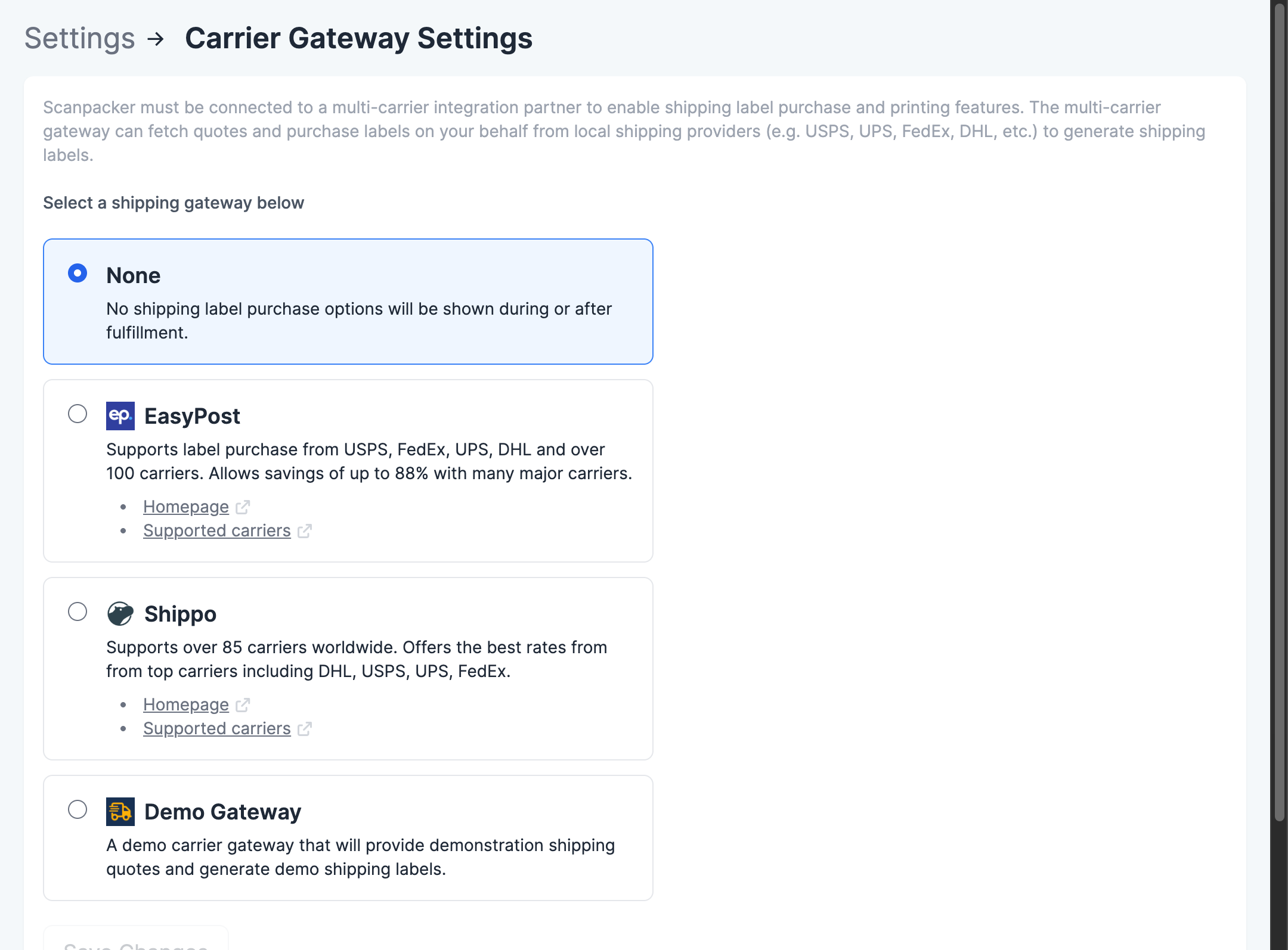
Labels are bought through a multi-carrier shipping platform — either EasyPost or Shippo — which gives you access to USPS, UPS, FedEx, DHL and dozens of regional carriers. Which carriers and services you can use depends on your account with that platform.
This feature is included on some plans only. See the pricing page for details.
Why Scanpacker can’t use Shopify’s own labels
If you buy your labels through Shopify Shipping today, Scanpacker can’t do that for you. Shopify doesn’t offer a way for other apps to buy Shopify Shipping labels, and Shopify can’t buy a label for a fulfillment that already exists — including one Scanpacker created.
So you have three choices:
- Keep buying labels in Shopify. Use Check only mode so Scanpacker checks the order and leaves it unfulfilled for you to fulfill and label in Shopify. See Fulfillment modes.
- Keep buying labels in another shipping app. Same as above, or use order tagging so your shipping app picks up orders tagged “packed”.
- Buy your labels in Scanpacker, using a shipping platform account as described below.
Setting up
1. Connect a shipping platform
Create an account with EasyPost or Shippo, then in Scanpacker:
- Go to Settings → Shipping Labels.
- Choose your platform.
- Enter your API key from that account.
- Click Save Changes.
2. Connect your carriers
Log in to your EasyPost or Shippo account and connect your carrier accounts (USPS, UPS, FedEx and so on) there. Scanpacker uses whatever your platform account has access to.
3. Let carriers and services appear
Carriers and services aren’t synced upfront. Scanpacker adds them as you use them:
- Carriers appear in Settings → Carriers once you request quotes or buy a label. You can disable any you don’t use.
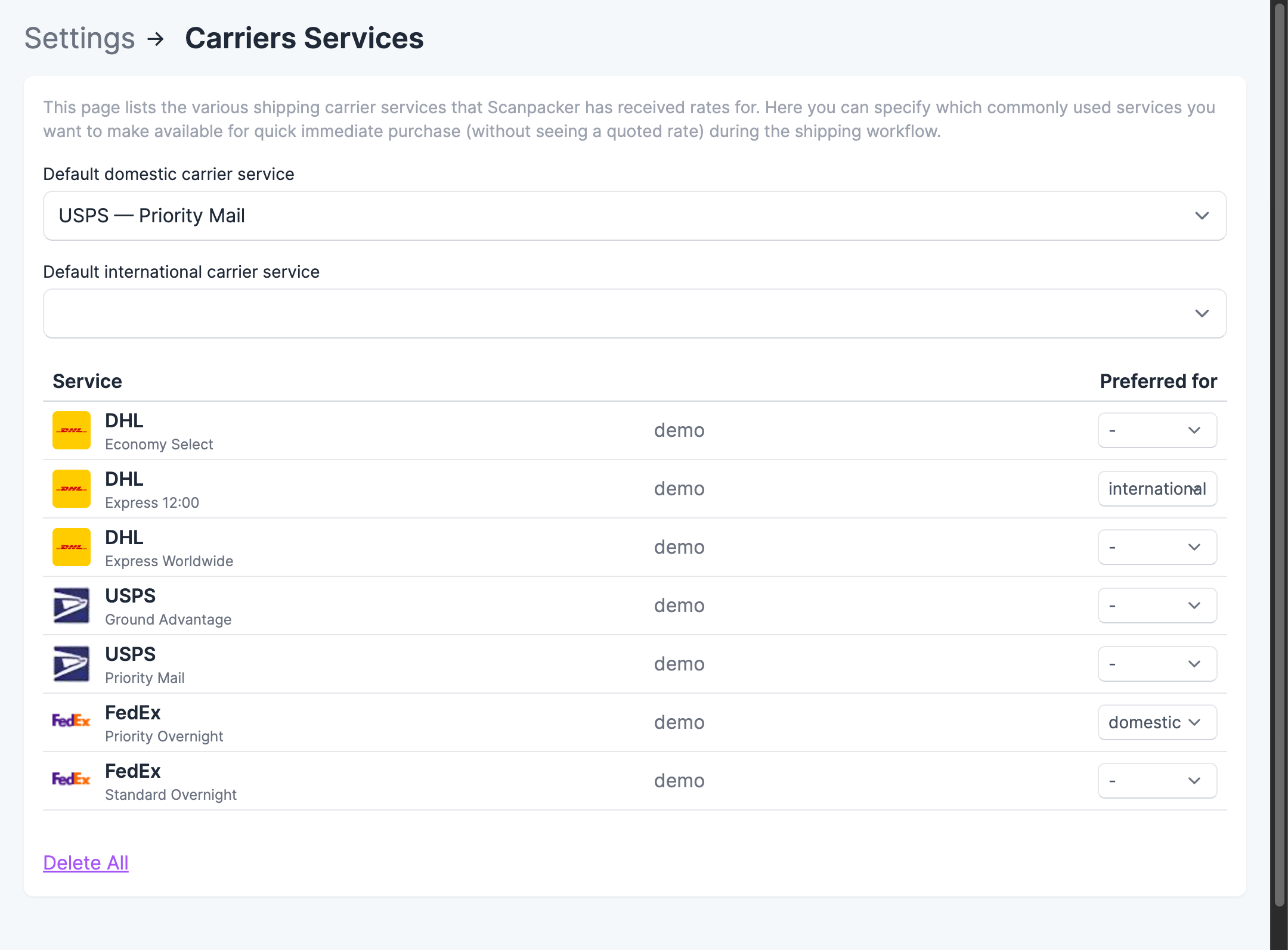
- Carrier services (such as “USPS Priority Mail”) appear in Settings → Carrier Services once Scanpacker has seen rates for them.
If you’ve just connected your platform and the lists are empty, that’s expected — fetch some rates and they’ll fill in.
4. Choose default services
In Settings → Carrier Services, set a preferred service for domestic and for international shipments. Preferred services are offered first on the ship page, so most orders need no choosing at all.
5. Optional: parcel templates and customs defaults
Parcel templates save your standard box sizes. In Settings → Parcel Templates, add a template with a name, its dimensions, and optionally the weight of the empty box. You can then pick it by name when shipping.
Customs defaults apply to international shipments. On the Settings → Shipping Labels page, under International Shipping, enter a default customs signer and EEL/PFC code.
Buying a label
Set the parcel size and weight
At the top of the ship page you’ll see the carrier service, parcel size and weight.
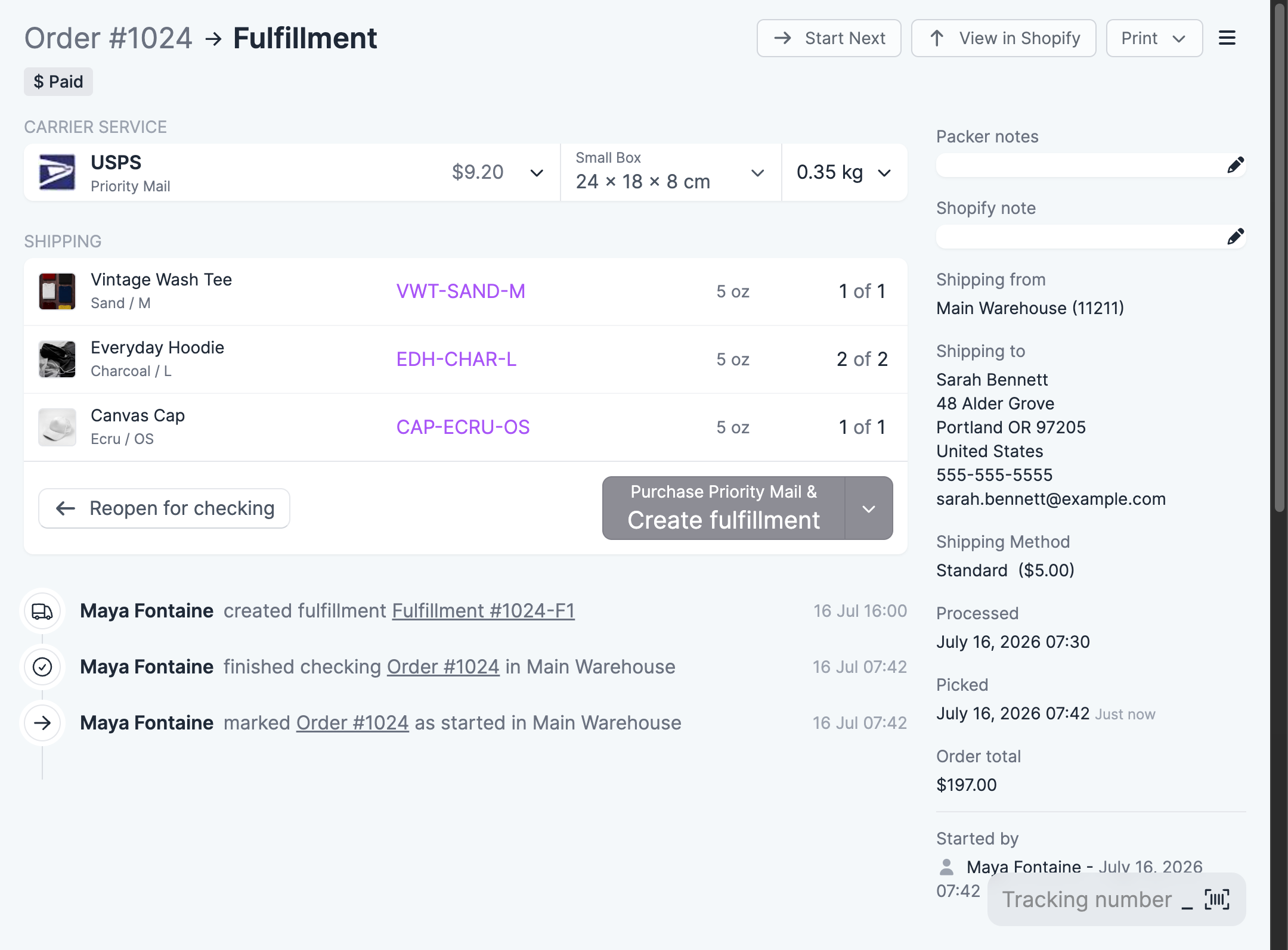
- Dimensions — choose a saved template or enter your own.
- Weight — enter it, or use Recalculate weight to work it out from your product weights plus the packaging weight of the template.
Changing the size or weight clears any rates you’d already fetched, so you’ll need to fetch them again.
Choose a service
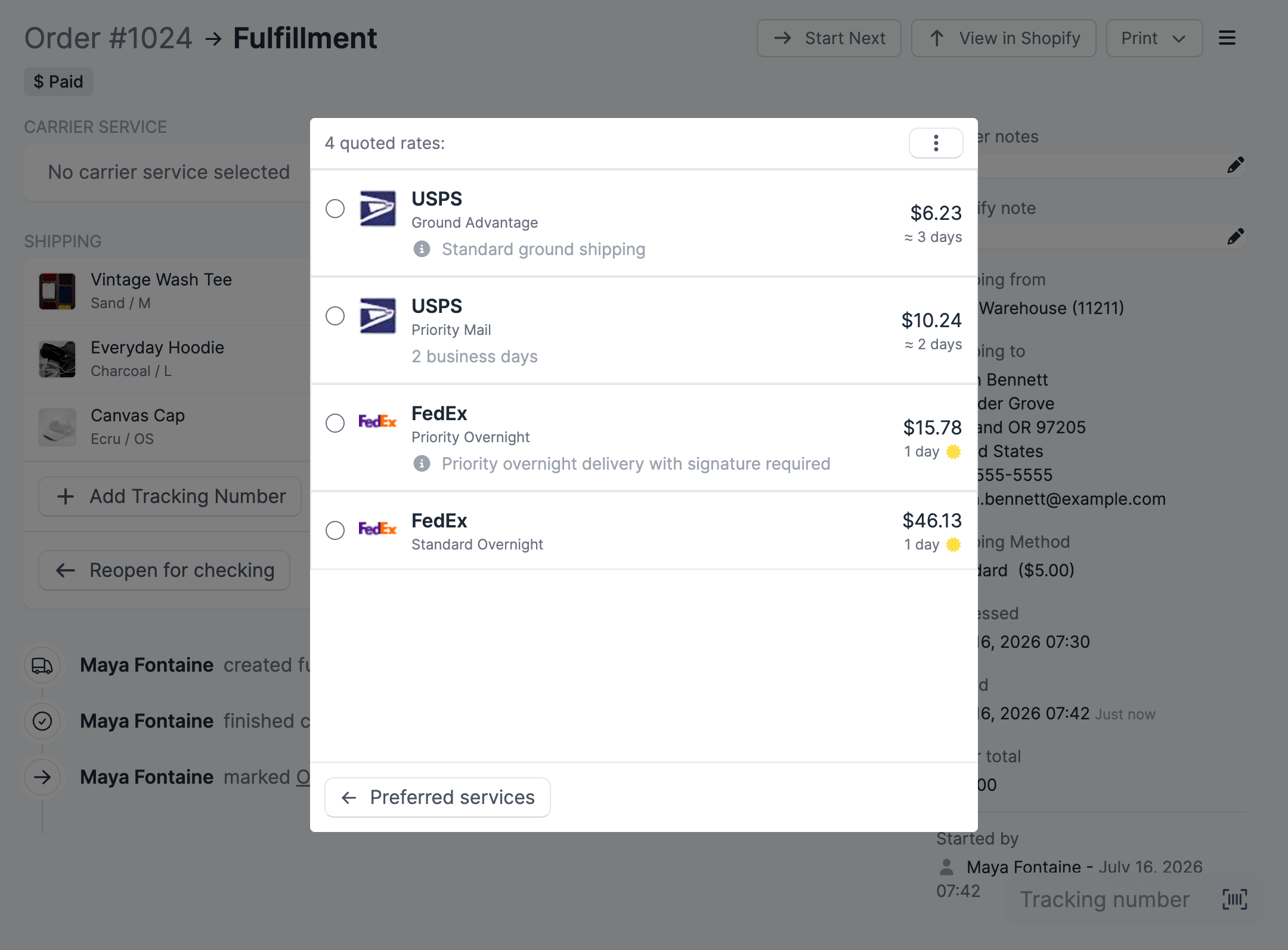
Open the carrier service dropdown. Your preferred services are listed first, showing a recent quote if there is one. To see live prices, choose Fetch live rates….
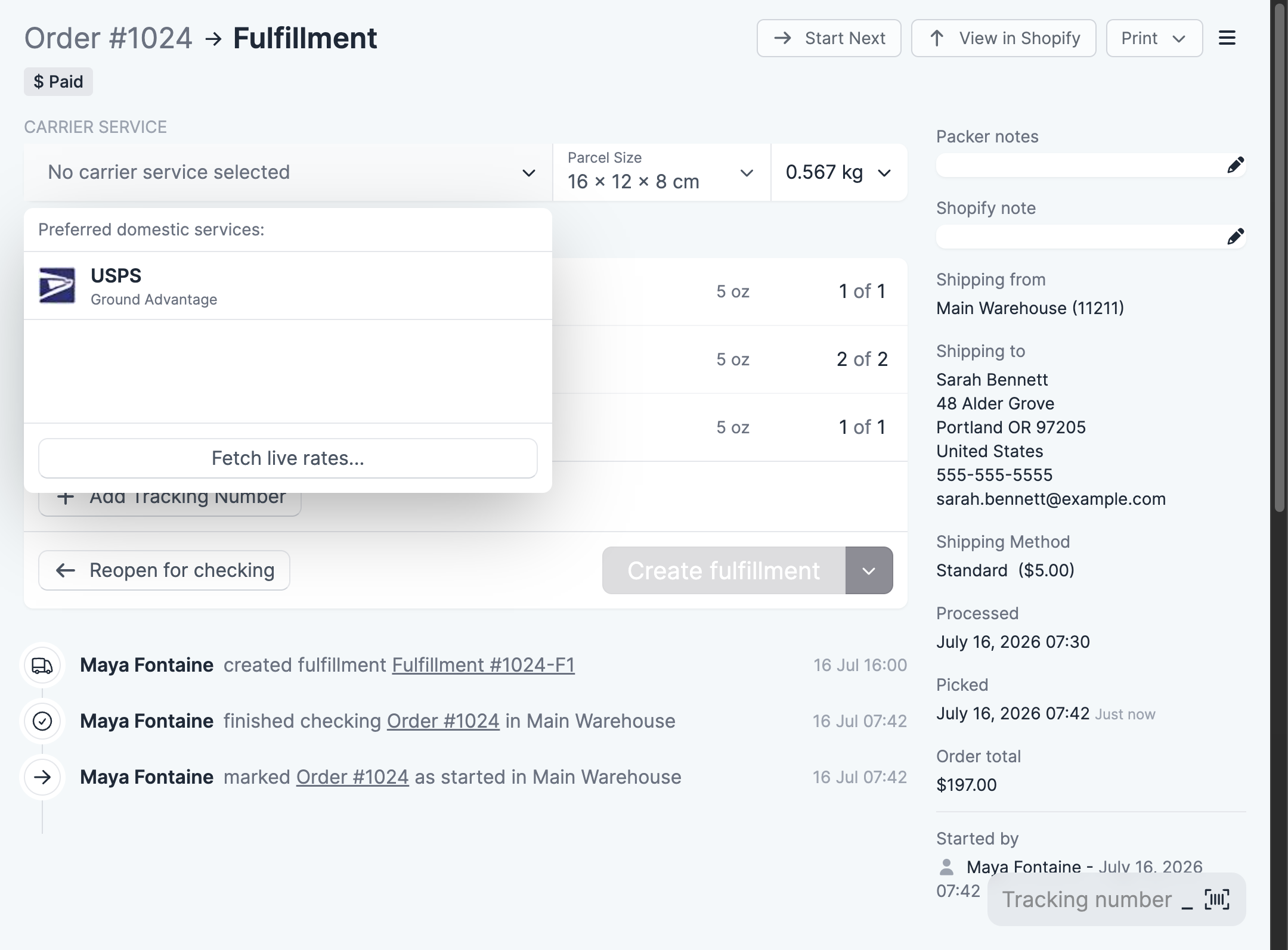
Rates take a few seconds to come back, with prices and delivery estimates where the carrier provides them. Click one to lock it in.
Create the fulfillment
Click Create fulfillment. Scanpacker buys the label, records the tracking number, creates the Shopify fulfillment, and prints the label and any customs forms if you’ve set up automated printing.
You can skip the quoting step: choose one of your preferred services without fetching rates, then click Create fulfillment, and Scanpacker will try to buy the label in a single step. It’s quicker, but you won’t see the price first, and not every carrier supports it. If it doesn’t work you’ll be asked to fetch rates instead.
International shipments
Scanpacker sends customs information with the shipment, made up of:
- Item names, quantities and values from the order
- HS tariff codes and country of origin from the product variant in Shopify
- Your default customs signer and EEL/PFC code
Your shipping platform generates whatever customs paperwork the destination needs, and it prints alongside the label.
To keep declarations accurate, set the customs fields on your products in Shopify: Products → edit a variant → Inventory → Country/Region of origin and HS code.
Orders with multiple fulfillment groups
If an order has more than one fulfillment group — items shipping from different locations, for example — each group gets its own parcel and its own label. You check, size and label each one separately.
Purchased labels
Labels you’ve bought for an order are listed on its ship page with the carrier, service, tracking number and purchase time. From there you can print a label again at any time.
If you bought a label but didn’t go on to create the fulfillment, it’s marked as unused, and its tracking number is filled in for you next time you fulfill that order.
Trying it out first
Scanpacker has a demo platform for testing the workflow without a real account or real money. In Settings → Shipping Labels, choose Demo platform. You’ll get made-up carriers, quotes and labels — useful for training staff or checking your printer setup before going live.
When something goes wrong
“Please re-rate the shipment.” The delivery address changed after you fetched rates, so the quote no longer applies. Fetch rates again.
A rate is no longer available. Quotes expire, and they’re cleared when the parcel size, weight or address changes. Fetch rates again.
The purchase failed. The message will say why. The usual causes are an empty balance in your EasyPost or Shippo account, an address the carrier won’t accept, a service that doesn’t cover the destination, or a temporary problem at the shipping platform.
The calculated weight looks wrong. Check the variant weights in Shopify and the packaging weight on your parcel template, or type the weight in by hand.
Related documentation
- Fulfillment modes — whether Scanpacker or Shopify creates the fulfillment
- Printing and Automated printing — printer setup, and printing labels without being asked
- Order tagging — for buying labels in Shopify or another app
- Automated tabs — open a carrier’s website automatically after packing