Batch picking
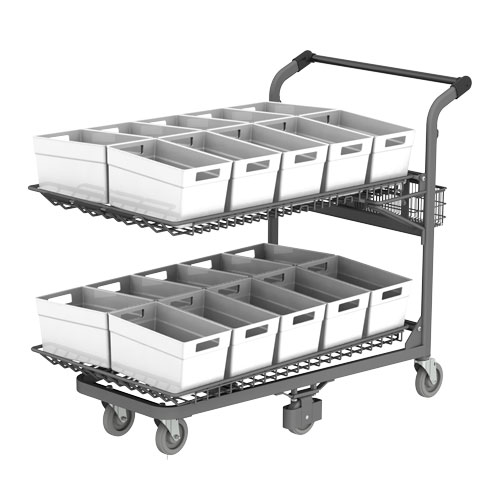
Batch picking lets you pick items for several orders in a single pass through your warehouse, instead of walking the same route once per order. Every order is still barcode-checked before it ships.
This guide covers the two picking modes, how to run your first batch, and how to manage batches day to day.
Choose a picking mode
When you start a batch, you choose how you want to pick it:
- Pick list — Pick everything from one combined list, then check and ship each order by scanning as usual. No setup required. Optionally, give each order its own tote so you can keep items separate as you pick.
- Guided picking — Scanpacker walks you through the pick item by item: you scan each product, then scan the labelled cart slot it goes into. Requires a picking cart with barcode-labelled slots (a one-time setup).
If you’re new to batch picking, start with pick list mode. It needs no setup, and every order still goes through the normal fulfillment checking step. Move to guided picking when you want scan verification during the pick itself.
Your first batch (pick list mode)
There’s nothing to set up — you can run a pick list batch right away:
- Go to the Orders page and click Batch pick. To pick specific orders together, tick their checkboxes first. Otherwise, the oldest pending orders are added automatically.
- Choose the number of orders for the batch.
- Leave Pick list selected and click Start Batch.
[Screenshot: Start Batch Picking dialog showing the picking mode options]
Scanpacker combines the orders into a single pick list, sorted by storage location so you can walk your warehouse in one pass. Each line shows the location, product, SKU, total quantity, and which orders need that item. You can also print the pick list from the batch header if you prefer picking from paper.
By default the list follows the natural order of your location codes. If that isn’t the order you actually walk — you travel up one aisle and down the next, or visit zones in a set sequence — set up warehouse routing to describe the route you want.
- Pick everything on the list, then click Mark all picked.
- Click Check next order to check and ship each order in turn, or Scan order number to ship… to jump to a specific order. Each order goes through the usual checking workflow, so nothing ships without being scanned.
Assigning totes
If you want to keep each order’s items separate while you pick, tick Assign totes when starting the batch. Each order is given a tote, named from the cart type you choose, and shown on the pick list next to the order name and on the batch’s order list.
Totes don’t need labels or barcodes — the names are just a guide for sorting items into containers as you pick. Any bins, trays, or boxes will do.
Guided picking
In guided picking, each order in the batch gets a dedicated slot on your picking cart, and Scanpacker directs the whole pick scan by scan: it tells you what to pick, you scan the item to confirm it’s the right one, then you scan the slot you put it in. Orders can then be shipped straight from their slots.
Cart types
A cart type describes one kind of picking cart: a name, and the slot labels on that cart in the order they appear. If your carts aren’t all the same — a six-bin cart and a twelve-bin trolley, say — set up a cart type for each. You choose the cart type when you start a batch, and that batch’s slots are labelled from it, so several pickers can work at once on different carts.
One-time setup
You’ll need a picking cart with a labelled slot for each order in a batch — see Picking cart setup for cart ideas. Then, in Scanpacker:
- Go to Settings → Batch Picking and click Manage cart types. Every organisation starts with one cart type called Default.
- Click a cart type to edit it, or Add New Cart Type for another kind of cart.
- Give it a name (e.g.
Standard,Small cart) and enter its slot labels in order, separated by commas — for exampleA1, A2, A3, B1, B2, B3. Each label must be unique within the cart type, contain no spaces, and be 10 characters or fewer. Put each shelf or tier on its own line if that’s easier to read. - Click Print slot labels and attach the printed barcode labels to the bins or totes on that cart.
Two optional settings, both under Settings → Batch Picking:
- Require storage location scan during batch picking — also scan the storage location of each item before its barcode.
- Require batch slot scan during guided batch picking — on by default. Switch it off and each pick is confirmed with an on-screen button instead, though scanning the slot label still works.
Picking
Start a batch as before, but choose Guided picking as the mode and pick the Cart type you’re using. The number of orders you can batch is capped by that cart type’s slot count. Then click Enter guided picking and follow the prompts for each item:
- Scan the storage location (only if you’ve turned on location scanning).
- Scan the product barcode to confirm you have the right item. The quantity counter increases with each scan — scan once per unit.
- Scan the slot barcode for the order the item belongs to, or confirm on screen if you’ve turned slot scanning off.
The screen highlights the scan it expects next, and moves to the next item automatically. When every item has been visited, picking finishes and the batch is ready to ship. If you don’t have a barcode scanner to hand, click Open camera to scan with your phone or tablet — see camera scanning.
If something doesn’t go to plan mid-pick, use the item menu (☰):
- Not enough stock? Scan the quantity you do have, then choose Finish part-pick. You can top the order up later or ship it partially.
- Item unavailable? Choose Skip this item to move on. The item stays unpicked.
- Nothing on the shelf at all? Choose Out of stock. The order is set aside as short, and picking carries on with the next item.
- To finish a batch that still has skipped or part-picked items, choose Finish picking (partial) from the batch menu.
Short orders are collected on the Short Order Report, reached from the batch, which lists what was picked against what was needed for each short order and can be printed.
Shipping a guided batch
Once picking is finished:
- Click Ship batch slot….
- Scan a slot’s barcode label — that order’s shipping screen opens. Scanning the order number works too, if the slot label is out of reach.
- Complete shipping as usual, then scan the next slot.
Orders with part-picked items are marked (part-picked). You can ship them as partial shipments, or go back and complete the picking first.
Orders with multiple fulfillment groups
If an order has multiple fulfillment groups, batch picking adds one fulfillment group per order to the batch. The remaining fulfillment groups for that order can be picked separately — either in a later batch or by checking the order directly.
Managing batches
The Batches page lists your batches by status:
- Open — Currently being picked.
- Picked — Picking complete, ready to check and ship.
- Closed — All orders shipped.
Each batch has a number (starting at 500) and is assigned to the user who created it. Other users can view an open batch but not pick it — they’ll see “Batch assigned to [name]”.
From the batch menu you can also:
- Finish picking — Complete picking early, even if some items are unpicked.
- Reset all picking — Set all picked quantities back to zero and start again (guided batches).
- Reopen for picking — Return a picked batch to open so you can resume picking.
- Discard Batch — Delete the batch. Its orders return to the pending orders list.
Once a batch has been picked, you can also take a single order out of it with Remove from batch, from that order’s page. Its picking progress is kept, so a short order can be finished on its own when the missing stock arrives.
Tips
- Set up storage locations for your products so the pick list follows your warehouse route, and warehouse routing if that route isn’t simple alphabetical order.
- Common batch sizes are 6–12 orders. For guided picking, you need a cart slot for every order in the batch, so the cart type you choose sets the largest batch you can run.
- Use order tags to filter the order list before batching, so similar orders — same carrier, same deadline, same product range — are picked together.
Requirements
- Batch picking is available on plans that include the feature.
- A barcode scanner or camera scanning is needed for checking orders, and for guided picking.
- Guided picking requires a picking cart with barcode-labelled slots.