Order availability
The order availability page shows you which pending orders can be fully fulfilled, partially fulfilled, or have no stock available—before you start checking. Use it to plan your day, spot stock shortages early, and decide which orders to prioritize.
Where to find it
From the pending orders queue, click the Availability -> button next to the status tabs.
How it works
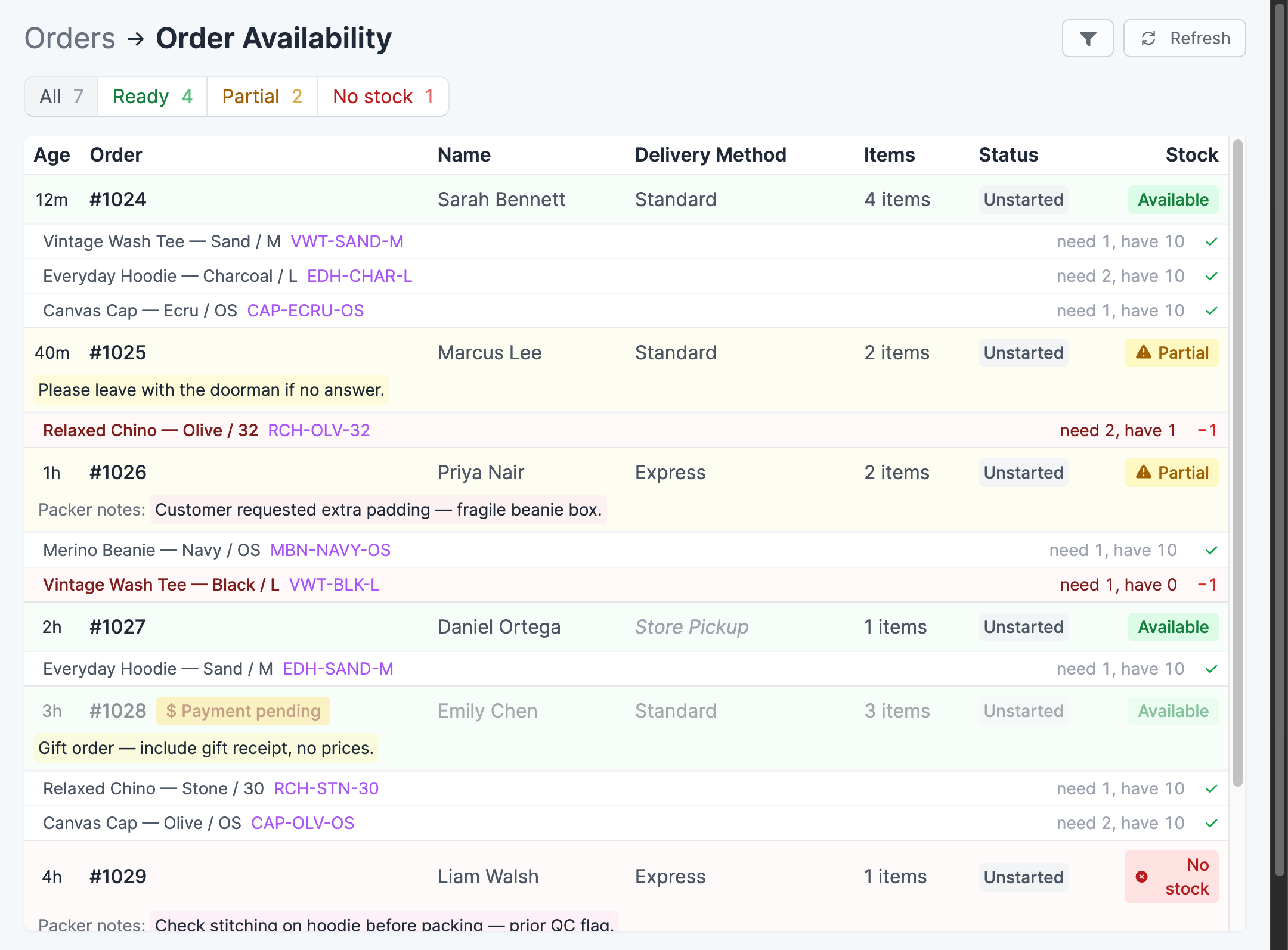
Scanpacker checks the current inventory levels for every item in each pending order and classifies each order into one of three statuses:
- Available — All items in the order are in stock. The order can be fully fulfilled.
- Partial — Some items are available but others are short. The order can only be partially fulfilled right now.
- No stock — None of the items in the order have available inventory.
Orders are listed oldest first, matching the order of your pending orders queue. Scanpacker loads your whole queue automatically, one page at a time—rows and counts fill in as it works through your orders.
If an order ships in multiple parts, each shipment appears as its own row with a badge like Group 1 of 2.
Summary bar
At the top of the page, a row of buttons shows how many orders fall into each status:
- All — Every unfulfilled order, including orders in the process of being checked
- Ready — Orders with full stock
- Partial — Orders with some stock
- No stock — Orders with no available inventory
The counts update as Scanpacker loads your queue. Once loading finishes, the buttons become filters: click Ready, Partial, or No stock to show only those orders, and All to show everything again.
Order rows
Each row is tinted green, yellow, or red to match its availability, and shows:
| Column | Description |
|---|---|
| Age | How long the order has been pending |
| Order | Order number—click any row to open the order |
| Name | Customer name from the shipping address |
| Delivery method | The order’s shipping method, or store pickup |
| Items | Total number of units needed |
| Status | Checking status—Unstarted, or the current progress (e.g. Picking, Picked) |
| Stock | Color-coded availability badge (Available, Partial, or No stock) |
Order tags, order notes, and packer notes appear underneath the row, just like in the pending orders queue.
Line item breakdown
Below each order, every line item is listed with its stock position:
- Product — Item name and SKU
- Inventory — How many are needed and how many are available (e.g. “need 3, have 1”). A gray (+2) means two more units are on hand but already allocated to other orders. Hover over it to see which orders, and whether each one has been started.
- Shortfall — A red −X shows how many units are short; a green ✓ means the item is fully in stock
- Untracked — Items without inventory tracking show an untracked label and are always treated as available

Stock calculation
Availability is based on the on-hand inventory at your current location, minus any units marked as damaged or in quality control. Scanpacker then shares that stock out between orders:
- Started orders go first — Orders that are already being checked, on their own or in a batch, take their stock before any other order, even if they’re newer.
- Then every other order, oldest first — Each order in your queue takes what it needs in turn, including unpaid orders. When there isn’t enough of an item, the order takes what’s left and later orders get none.
For example, you have 3 mugs. Order #1040 is being checked and needs 2. Order #1038 is older but not started, and needs 2. #1040 gets 2 mugs, so #1038 shows as Partial, 1 mug short.
An order on hold isn’t in the queue, so it takes no stock. To let newer orders have an older order’s stock, put the older order on hold.
Batch picking and Start First Order use the same calculation. So Only add orders with enough stock and Only start orders with enough stock pass over the orders this page shows as short.
The page shows a snapshot from when it loaded. Click Refresh in the top right to recalculate with the latest inventory.
Filtering orders
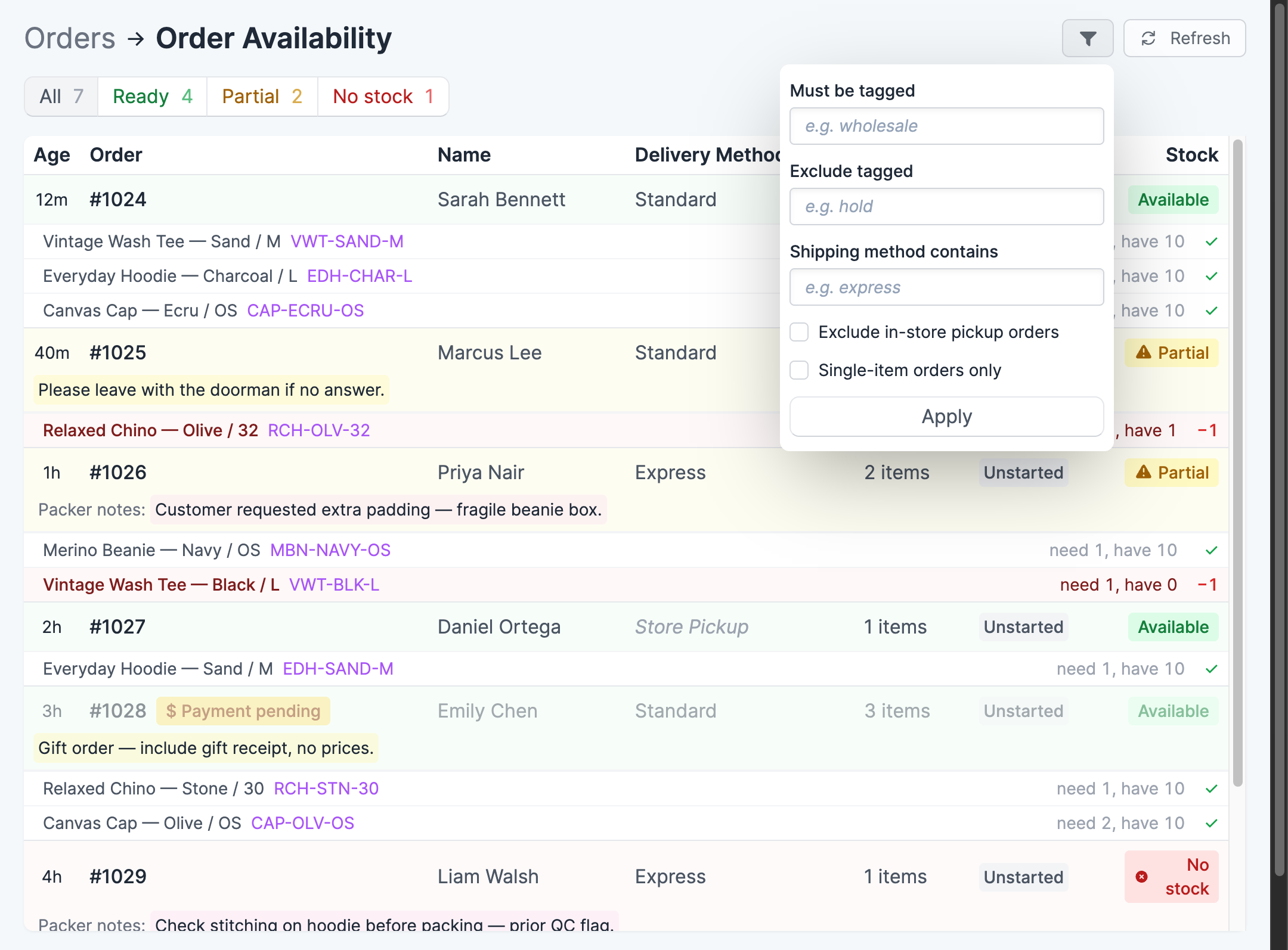
Click the Filter button in the top right to narrow down the orders shown. These are the same filters as the pending orders queue:
- Must be tagged — Show only orders that have a specific tag (e.g. “wholesale”)
- Exclude tagged — Hide orders with a specific tag (e.g. “hold”)
- Contains SKU — Show only orders that contain a product with this SKU (e.g. “ABC-123”)
- Shipping method contains — Show only orders where the shipping method matches a piece of text (e.g. “express”)
- Exclude in-store pickup orders — Hide store pickup orders
- Single-item orders only — Show only orders with a single item
When a filter is active, a banner above the order list shows which filter is applied.
Note: Orders hidden by a filter still consume stock in the calculation, so the statuses you see match your real queue—not just the filtered view.
Starting orders from this page
If batch picking is enabled, you can start a batch directly from the availability page:
- Use the checkboxes on the left side to select the orders you want to pick together. The checkbox in the header row selects everything shown.
- Click Batch pick in the top right.
- Review the new batch and start picking.
Orders that are already being checked, and orders that aren’t paid yet, appear grayed out and can’t be selected.
Tip: Click Ready in the summary bar first, then select all—your batch will only contain orders you can fully pick.
Related features
- Order queue — The main orders list where you start checking
- Batch picking — Pick items for multiple orders in a single warehouse pass
- Partial fulfillment — Ship part of an order when not all items are available