Buying labels through Shopify Shipping
Shopify Shipping sells discounted labels from the carriers Shopify works with in your country, paid on your Shopify bill. Connect it to Scanpacker and you can buy those labels on the ship page, with no separate shipping account or API key.
Shopify Shipping works differently from the other platforms in a few ways: there are no rates to compare before you buy, and Shopify creates the fulfillment itself. This guide covers those differences. For the shipping workflow itself, see Shipping label purchase.
Where it works
You can buy Shopify Shipping labels for orders shipped from locations in the United States, Canada, the United Kingdom, France, Germany, Italy, Spain, the Netherlands, and Poland. Which carriers you get depends on the country, for example USPS and UPS in the US, Canada Post and Purolator in Canada, or Royal Mail, Evri, and DPD in the UK.
FedEx labels and deliveries to pickup points aren’t available through Shopify Shipping in Scanpacker.
Setting up
- Buy one label in Shopify admin first. Shopify asks you to accept the Shopify Shipping terms the first time you buy a label, and apps can’t do that for you. Buy a label for any order in Shopify admin, and you only need to do this once.
- In Scanpacker, go to Settings → Shipping Labels and choose Shopify Shipping.
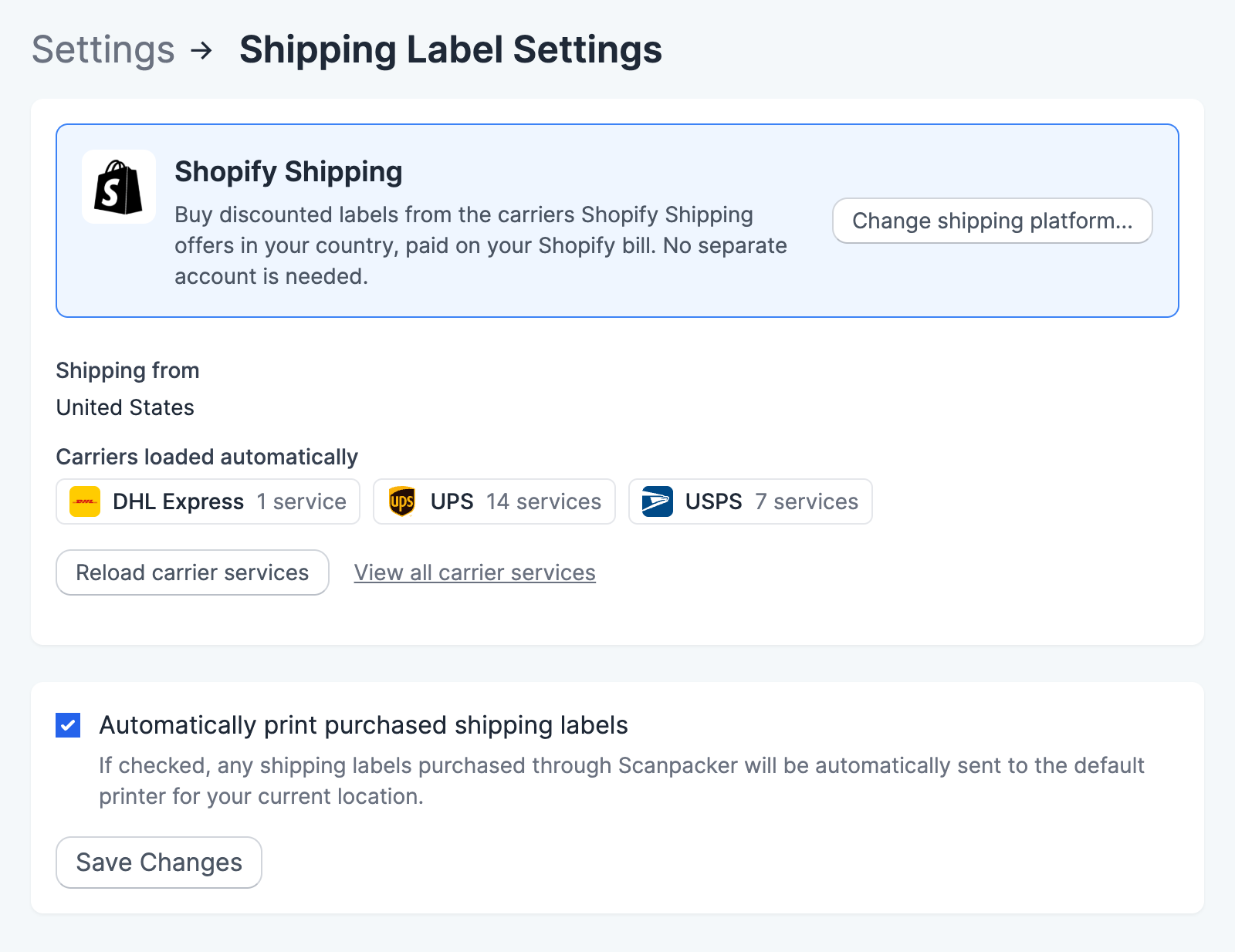
Scanpacker loads the carriers and services Shopify offers in the countries your locations are in, and sets Automatic as your default domestic and international service. If a location is in a country Shopify Shipping doesn’t cover, the settings page tells you which one. If you add a location in another country later, click Reload carrier services.
Choosing a service
Shopify doesn’t show a price until a label is bought, so Fetch live rates… isn’t available. Instead, the services menu lists every service Shopify offers for the parcel.
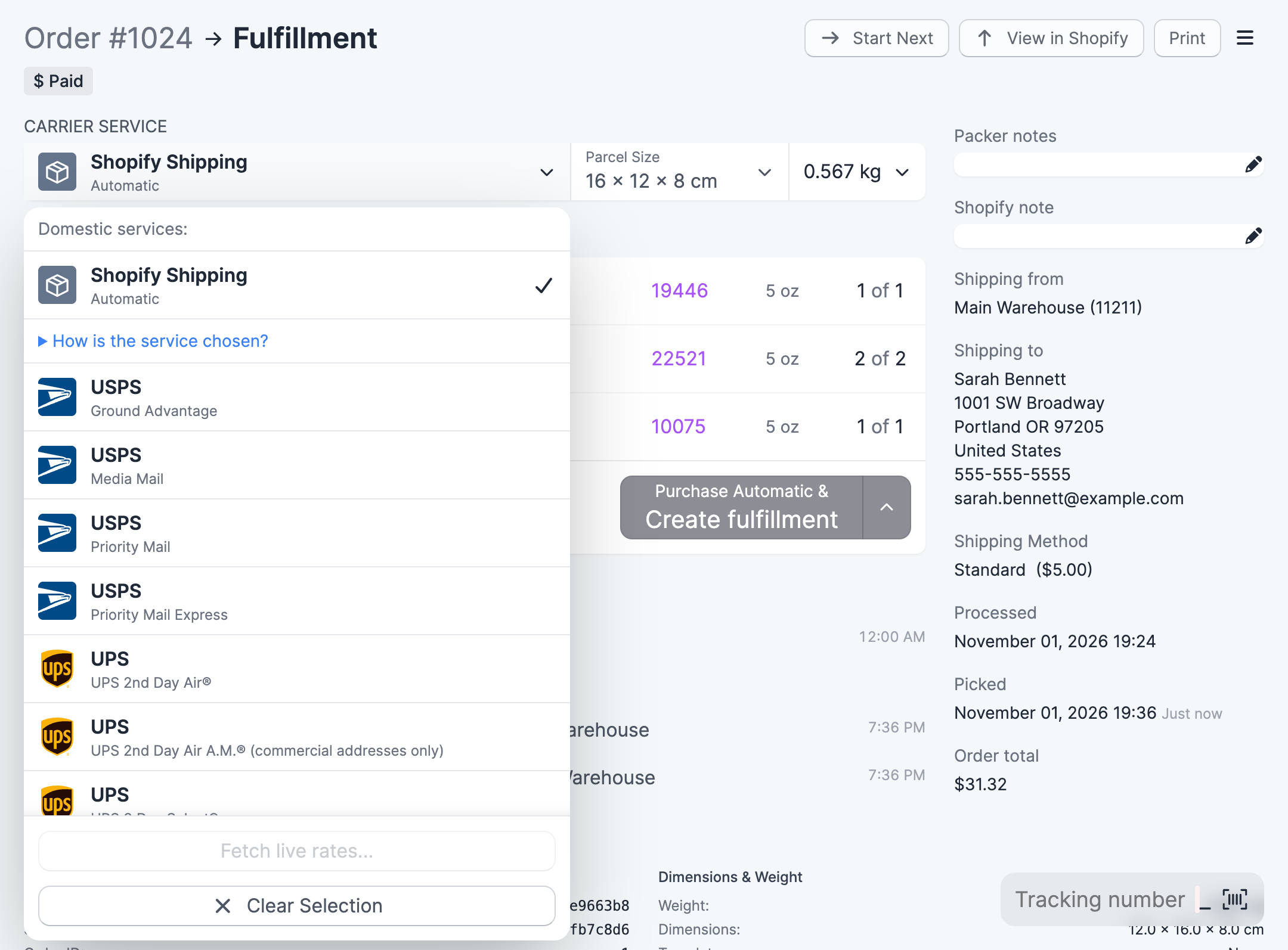
- Automatic lets Shopify choose. It uses the service your customer chose at checkout when it can. Otherwise it uses your preferred carriers, which you set in Shopify admin under Settings → Shipping and delivery → Shipping labels.
- A named service, such as USPS Ground Advantage or Royal Mail Tracked 48, buys that service.
You can set a different default in Settings → Carrier Services, as with any platform.
Buying a label
Set the parcel size and weight, choose a service, and click Create fulfillment. The button reads Buying label… while Shopify buys the label, which usually takes about 10 seconds. A few things are different from other platforms:
- Shopify creates the fulfillment. Buying the label fulfills the order in Shopify, with the tracking number. Scanpacker then prints the label and carries on as usual.
- The parcel needs a weight. Shopify won’t buy a label for a parcel weighing nothing, so the weight is highlighted if it’s empty.
- There’s no price in Scanpacker. The cost appears on your Shopify bill.
- Telling the customer. Tick Notify customer if you want Shopify to email the customer the tracking details.
Partial shipments
A Shopify Shipping label covers the whole fulfillment order: every item at that location. To ship only some of the items, turn on Split fulfillment orders for partial shipments in Settings → Scanning & Fulfillment. Scanpacker then splits off the items you’re shipping before it buys the label, and the rest stay on the order for later. Without that setting, Scanpacker won’t buy a label for a partial shipment.
Scan to ship works with Shopify Shipping too, but only for orders where every item has been checked.
Labels and printing
Shopify Shipping labels are 4x6 inch PDFs. They print with the 4x6 Shipping Label (PDF) print type, so make sure that print type has a label printer on each station.
To print a label again, use the order’s purchased labels list in Scanpacker. Shopify admin won’t reprint labels that an app bought.
International shipments
Shopify builds the customs declaration from your products, not from Scanpacker. Every product in the parcel needs an HS code and a Country/Region of origin in Shopify (Products → edit a variant → Inventory), or Shopify won’t buy the label. Customs forms print with the Carrier Generated Forms print type.
Things to watch out for
Labels can’t be voided in Scanpacker. Shopify doesn’t let apps void labels. To void one, find it in Shopify admin.
Don’t buy twice. If a purchase takes longer than 20 seconds, Scanpacker stops waiting and tells you Shopify is still buying the label. Shopify may still finish buying it. Check the order in Shopify admin before you try again.
Phone numbers. Some carriers need the customer’s phone number in full international format, such as +44 7700 900123. If Shopify refuses the number, correct it on the order and buy again.
Development stores get free test labels marked “Test Label – Do Not Ship”.
Troubleshooting
| What you see | Why | What to do |
|---|---|---|
| Accept the Shopify Shipping terms first | Nobody has bought a label in Shopify admin yet. | Buy one label for any order in Shopify admin, then try again. |
| Shopify is still buying the label | Shopify took longer than 20 seconds. | Check the order in Shopify admin before trying again. |
| buys one label for the whole fulfillment order | You’re shipping only some of the items. | Turn on Split fulfillment orders for partial shipments in Settings → Scanning & Fulfillment. |
| Rate was not found for the selected delivery method | The service you chose doesn’t go to this address, or doesn’t take this parcel. | Choose Automatic or another service. |
| A message about an HS code or country of origin | A product is missing its customs details. | Add them to the product in Shopify. |
| A message about the phone number | The number isn’t in full international format. | Correct it on the order. |
| No services for one of your locations | That location is in a country Shopify Shipping doesn’t cover. | Buy labels for that location another way. |