Check returns
Returns lets warehouse staff check a returned parcel against its order the same way they check an outgoing order: scan the parcel, scan each item as it comes out of the box, and say whether it goes back into stock or is set aside as damaged. When you finish, Scanpacker puts the stock back at the location you’re working at and records on the order’s return in Shopify which items came back. The refund stays in Shopify, so the person unpacking parcels never handles money.
The work is split between Scanpacker and Shopify on purpose. Scanpacker does the part that happens at the bench: counting, restocking, and putting items away. Shopify does the part that happens at a desk: deciding what to refund and paying the customer. This page explains both halves, and what the merchant sees in Shopify after a parcel has been checked.
Before you start
Returns needs permission from Shopify to read and process returns. The first time anyone opens Returns, Scanpacker asks for it, and the store owner or an administrator approves it once by choosing Approve permissions. Shopify then shows a page like this; choose Update to grant the access.
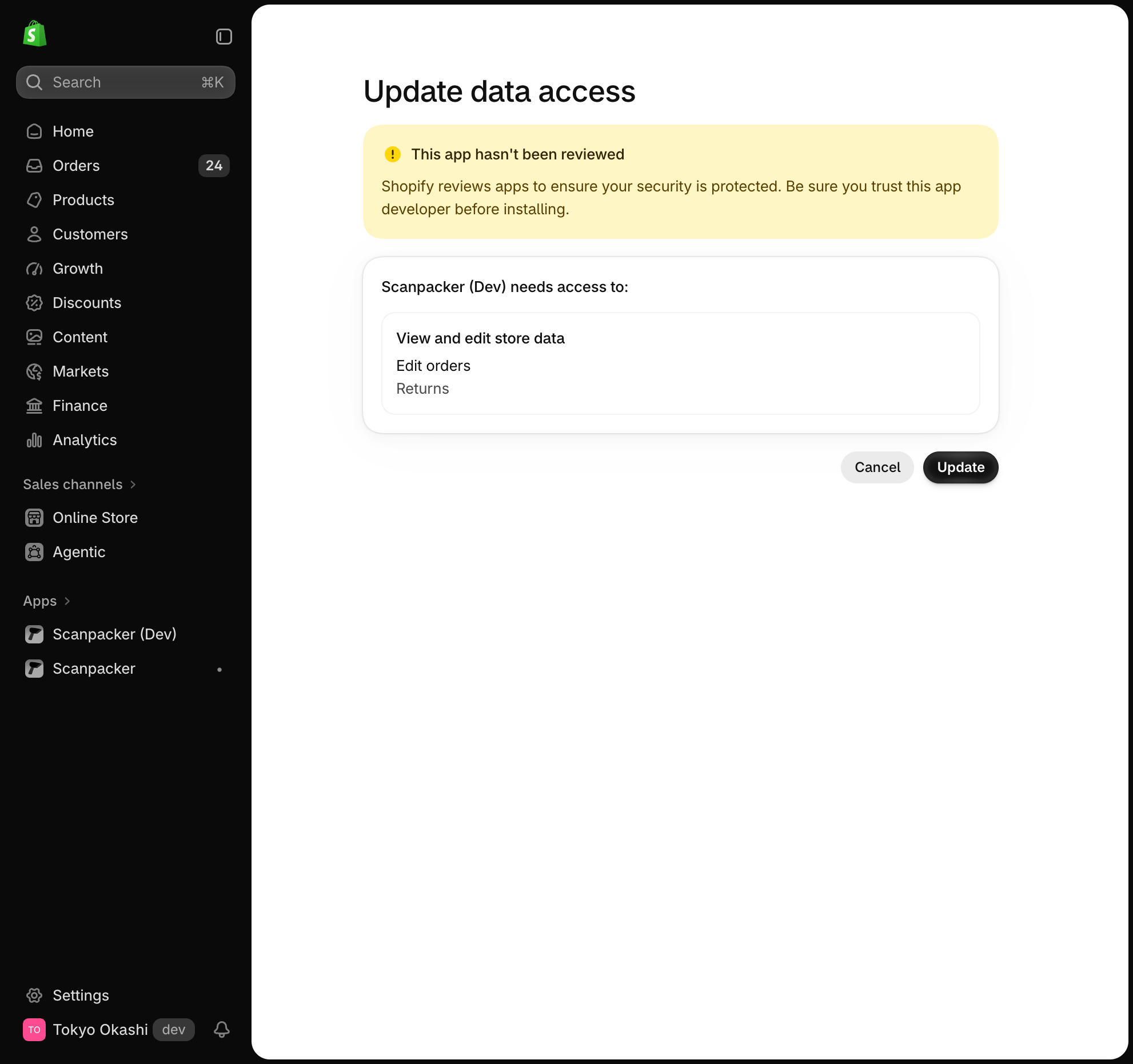
Staff need the Check returns permission to use Returns. The built-in Manager, Supervisor, and Operator roles have it. See Roles and permissions.
How a return flows
A return normally starts in Shopify, either because the customer requested one from their account or because the merchant created one on the order. Shopify then waits for the items to come back. The steps are:
- The customer or merchant opens a return in Shopify. The order shows Return in progress, and it appears in Scanpacker under Expected back with the items the return is waiting for.
- The parcel arrives and warehouse staff check it in Scanpacker. They scan the order, scan each item, and finish. Scanpacker restocks the items and records them on the Shopify return.
- The merchant refunds the customer in Shopify. On the order, Process and refund opens Shopify’s refund form. The items already show as restocked or not restocked, so the only decision left is how much to refund and how.
A parcel that arrives with no return in Shopify can still be checked. Scanpacker then restocks the items directly, without creating a return, and the merchant refunds from the order as usual.
Check a returned parcel
Open Returns in Scanpacker. If the parcel is being returned to a different location from the one you’re working at, change your location first, because that’s where the stock goes back.
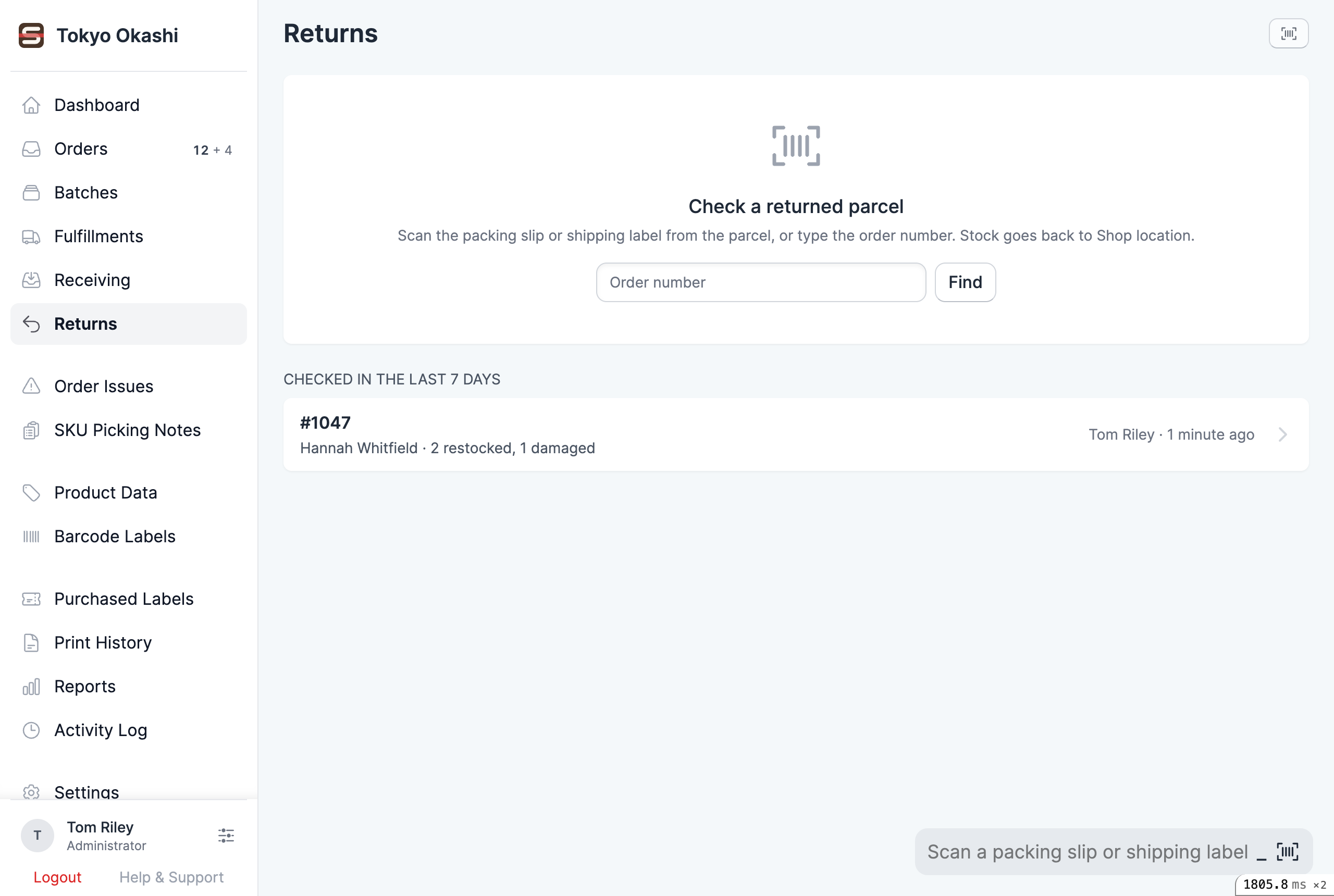
To check a parcel:
- Scan the packing slip or the shipping label from the parcel, or type the order number. A shipping label works when it was bought in Scanpacker. You can also choose the order from Expected back, which lists orders with a return that is waiting for items.
- Scan each item as you unpack it. Each scan counts one unit to Restock. To count damaged items, choose Damaged under Scan as before scanning them. You can also type a quantity. On a phone, each count has − and + buttons.
- If you want, write a note for the order, such as the condition of the parcel. Scanpacker adds it to the order’s notes in Shopify.
- Tap the finish button and confirm.
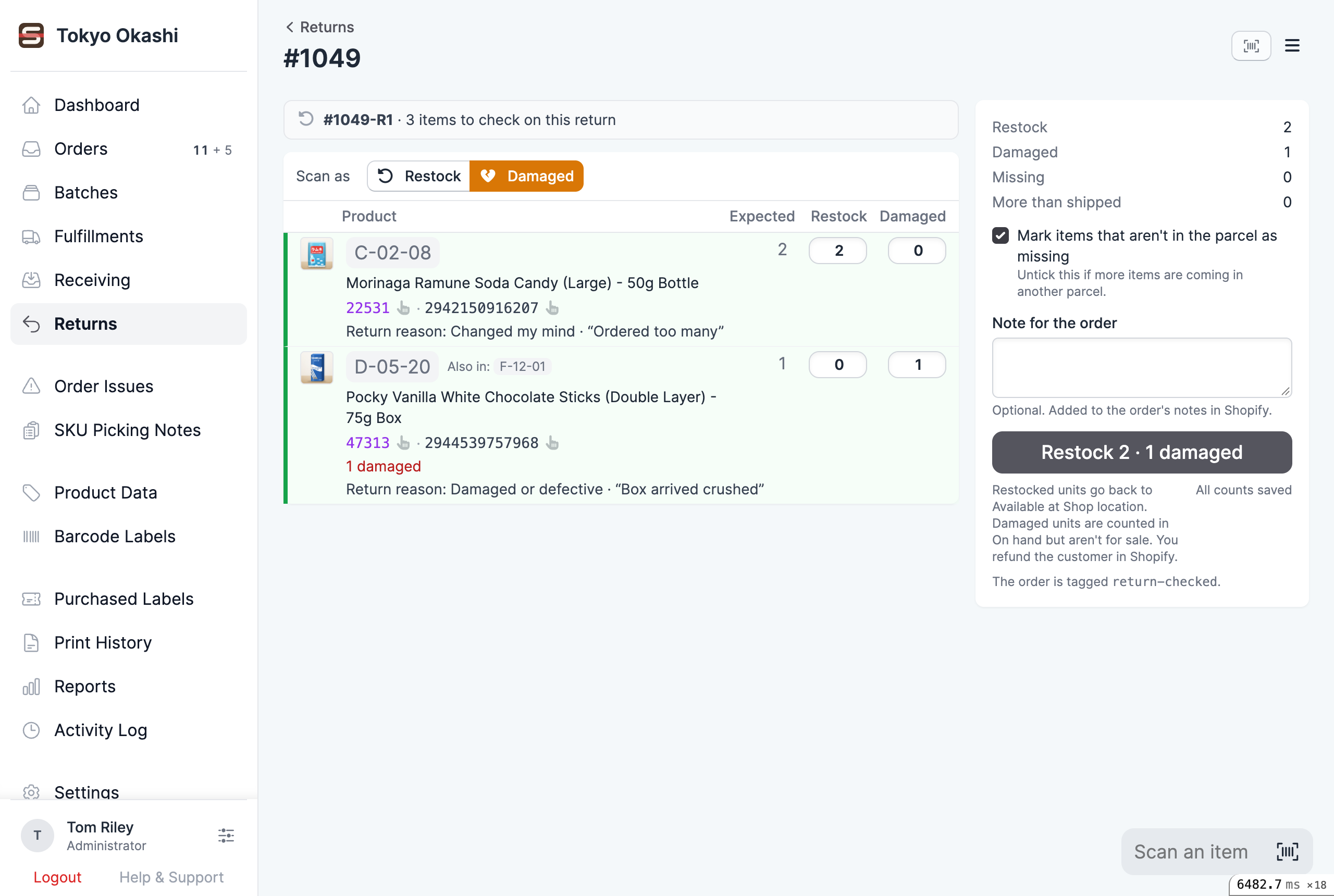
The Expected column shows how many of each item the Shopify return is waiting for, and under each item you can see its storage location, SKU, barcode, and the reason and note the customer gave. If the order has been checked before, a Previously checked column shows what already came back, and anything you count now is added to it.
Counts you haven’t finished yet are kept, so you can leave a parcel and carry on later from Continue checking in Returns.
Items that aren’t in the parcel
Items the return expects that you didn’t count are marked Missing when you finish, which tells Shopify they haven’t come back. If the rest of the return is coming in another parcel, untick Mark items that aren’t in the parcel as missing before you finish, and check the second parcel when it arrives. The summary says how many items are still to come.
Items that aren’t on the order
If you scan a product that isn’t on the order, Scanpacker asks whether to add it to the parcel. Added products don’t go on the return. Scanpacker adds them to stock directly.
If you count more of an item than was shipped, the extra units also go straight into stock rather than on the return, and the row is marked More than shipped.
If the return hasn’t been approved yet
A return the customer requested has to be approved in Shopify before anything can be recorded on it. If the order has a return that is still waiting for approval, Scanpacker says so at the top of the page and won’t let you finish. Approve the return in Shopify, then check the parcel.
What changes when you finish
When you finish, Scanpacker changes your inventory at the current location and records each item on the Shopify return:
- Restocked items are added to Available, so they can be sold again. On the return, Shopify shows them as restocked at your location.
- Damaged items are added to Damaged. They count towards On hand but aren’t for sale. On the return, Shopify shows them as not restocked.
- Missing items don’t change your inventory. On the return, Shopify shows them as missing.
Scanpacker also adds the tag return-checked to the order and adds your note to the order’s notes. You can change the tag, or turn it off, in Settings under Tagging.
Important: These changes can’t be undone in Scanpacker. To correct one, adjust the stock in Shopify.
Items whose inventory isn’t tracked, or that aren’t stocked at the current location, are shown on the order but can’t be counted, because there is no stock to change. They’re left on the return as they are, so the merchant can deal with them when processing the return in Shopify.
The summary
After you finish, Scanpacker shows what was restocked, set aside as damaged, and missing. The restocked items are listed with their storage locations and current available stock so they can be put away, and you can scan each item and then its storage location to confirm it’s back in the right place. From the summary you can also print barcode labels for the restocked items on the Barcode Labels page, or open the order in Shopify to refund the customer.
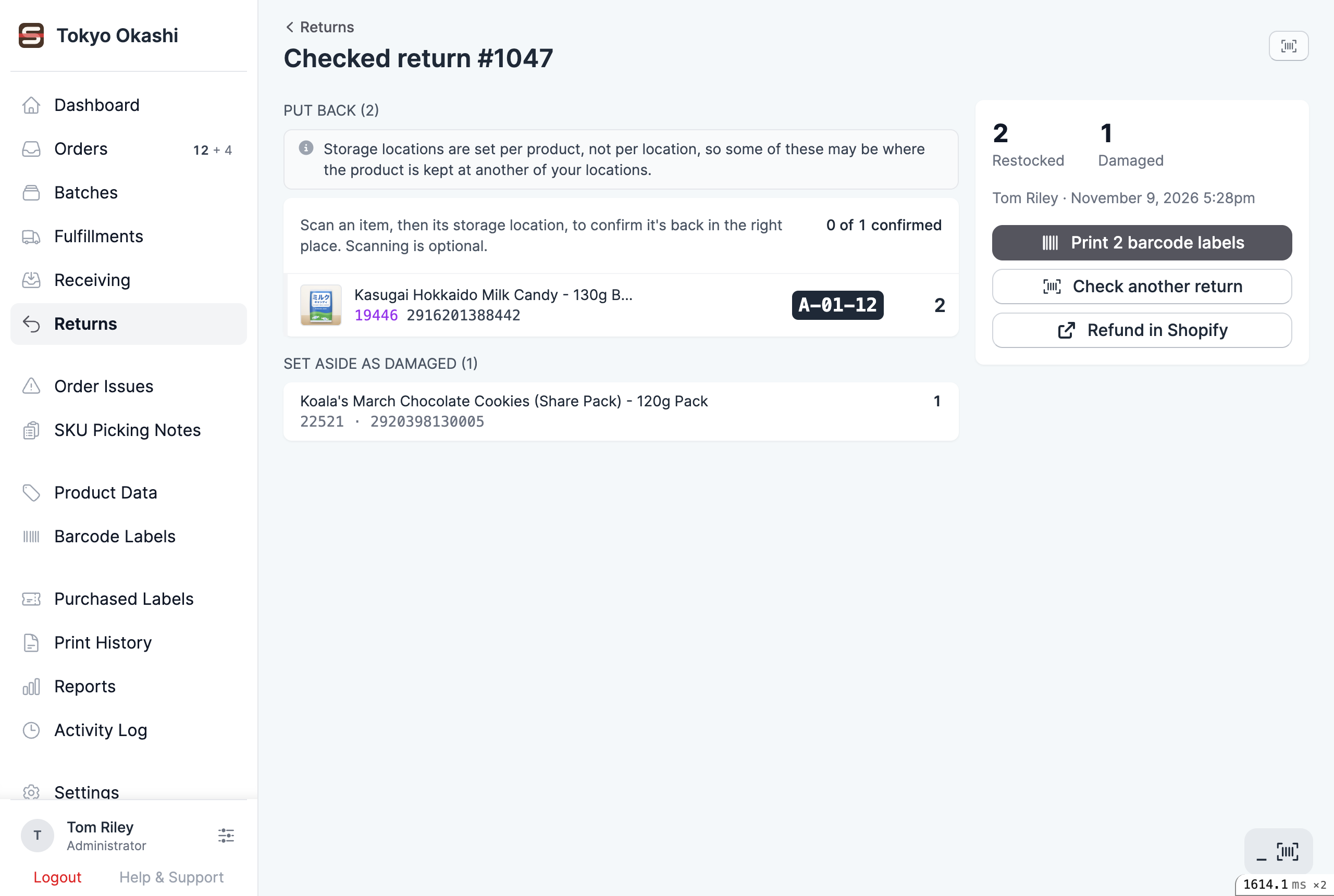
Returns checked in the last seven days are listed in Returns.
Refund the customer in Shopify
Scanpacker doesn’t issue refunds. Once a parcel has been checked, the merchant finishes the return in Shopify, where the order still shows Return in progress until it has been processed.
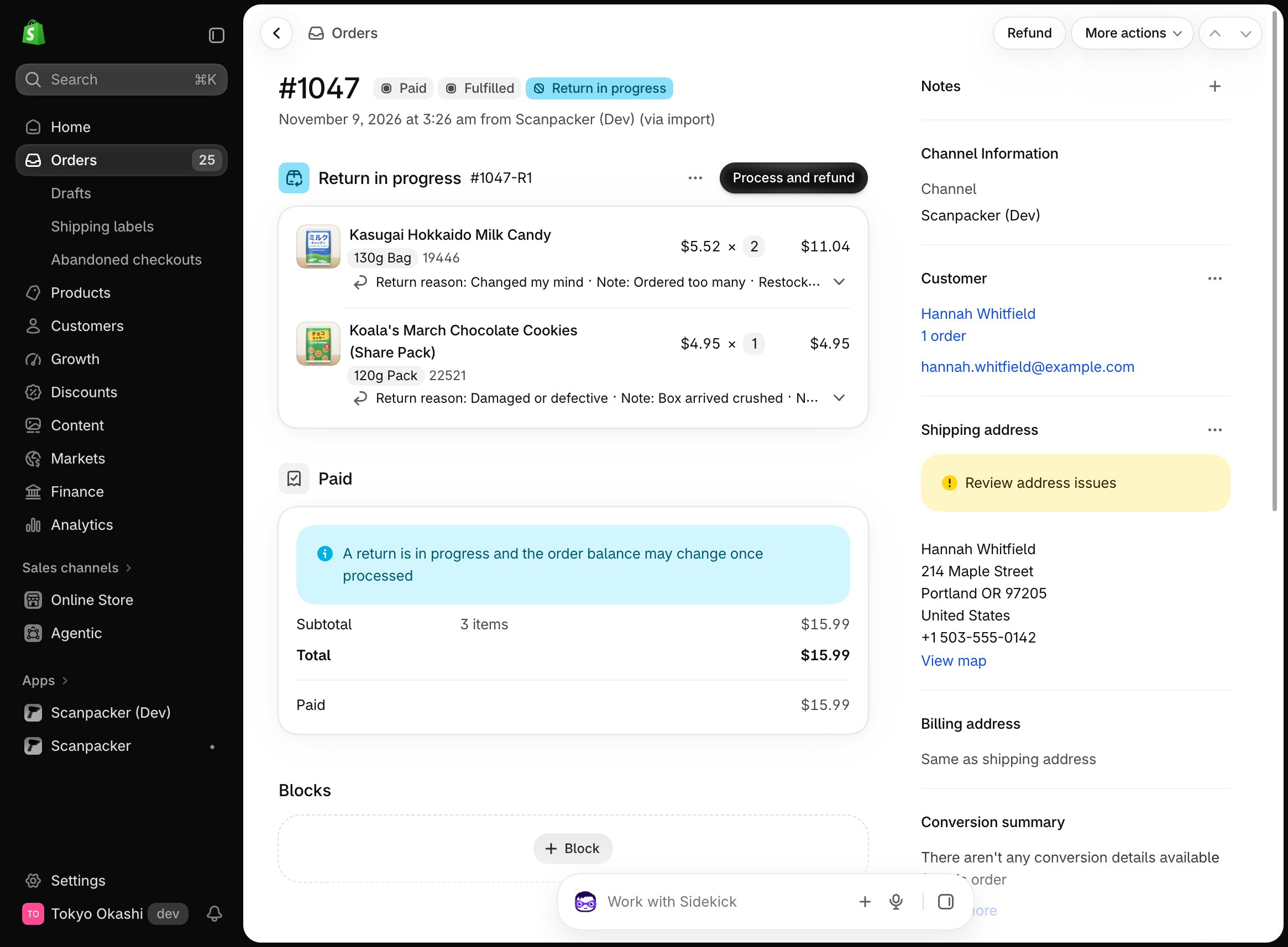
To refund the customer:
- In the Shopify admin, open the order and choose Process and refund on the return.
- Check the items. Those Scanpacker checked already show Restocked at your location or Not restocked, and Shopify says Items can’t be restocked, so processing the return won’t change your stock again.
- Choose whether to issue the refund now or later, the refund method, and the amount, then choose Process and refund. You can reduce the amount here, for example for an item that came back damaged.
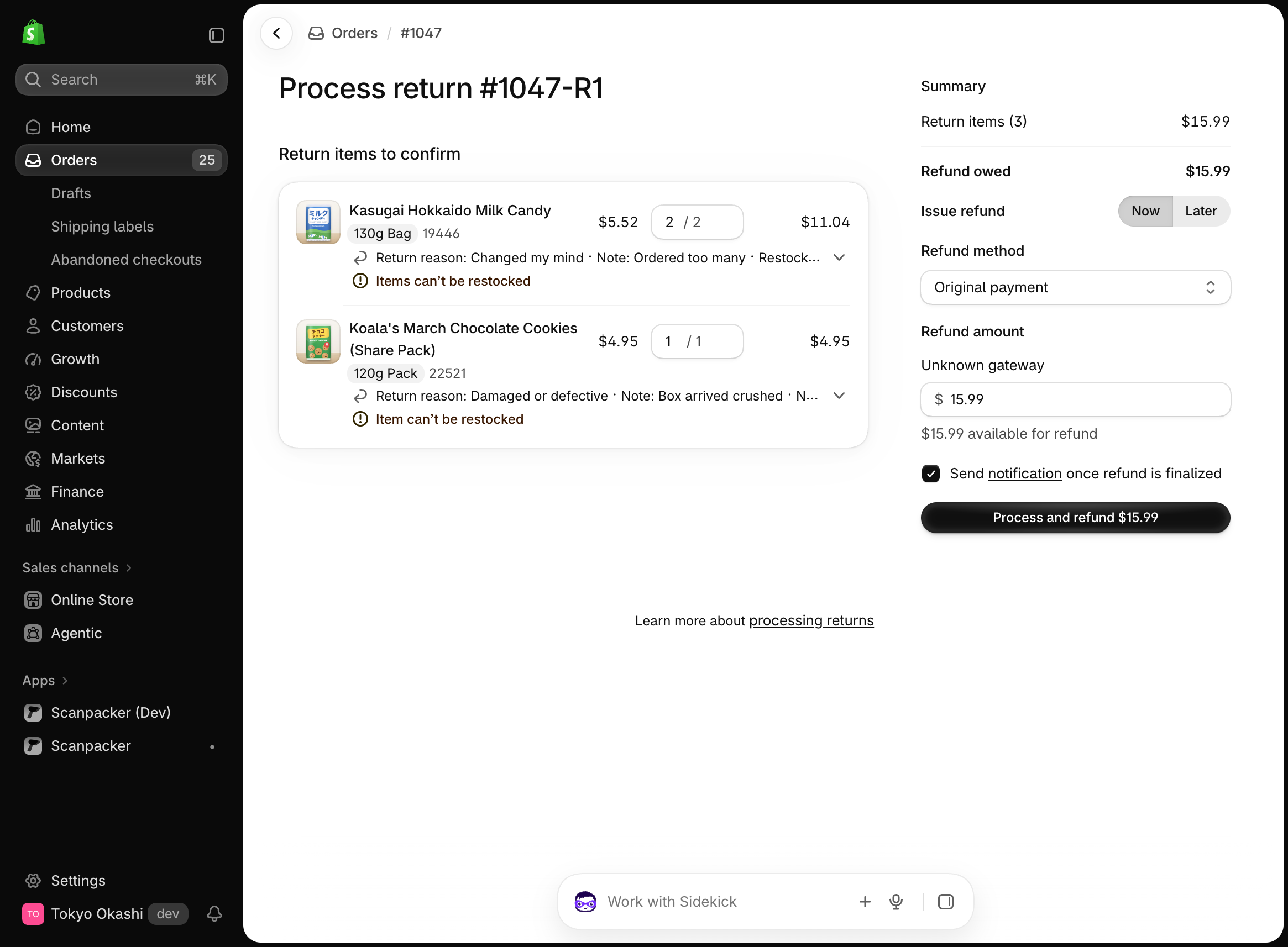
Shopify closes the return once every item on it has been processed. If you process only the items that have arrived and leave the rest for a later parcel, the return stays open and you can refund the rest when it comes.
Note: Shopify’s process form pre-fills every item on the return, including ones that haven’t been checked. If you process a return before its parcel has been checked in Scanpacker, Shopify restocks those items itself, and checking the parcel afterwards would restock them a second time. Check the parcel first, then process the return.
If something didn’t reach Shopify
If Shopify didn’t accept part of a check, for example because of a connection problem, the return is shown as Not finished in Returns and on its summary. Open it and choose Try again to send the rest. Anything that was already sent isn’t sent twice.
Related documentation
- Roles and permissions — give staff the Check returns permission
- Storage locations — the bins shown when putting restocked items away
- Barcodes — how products are matched when scanned
- Print barcode labels — print labels for restocked items