Shipping and printing
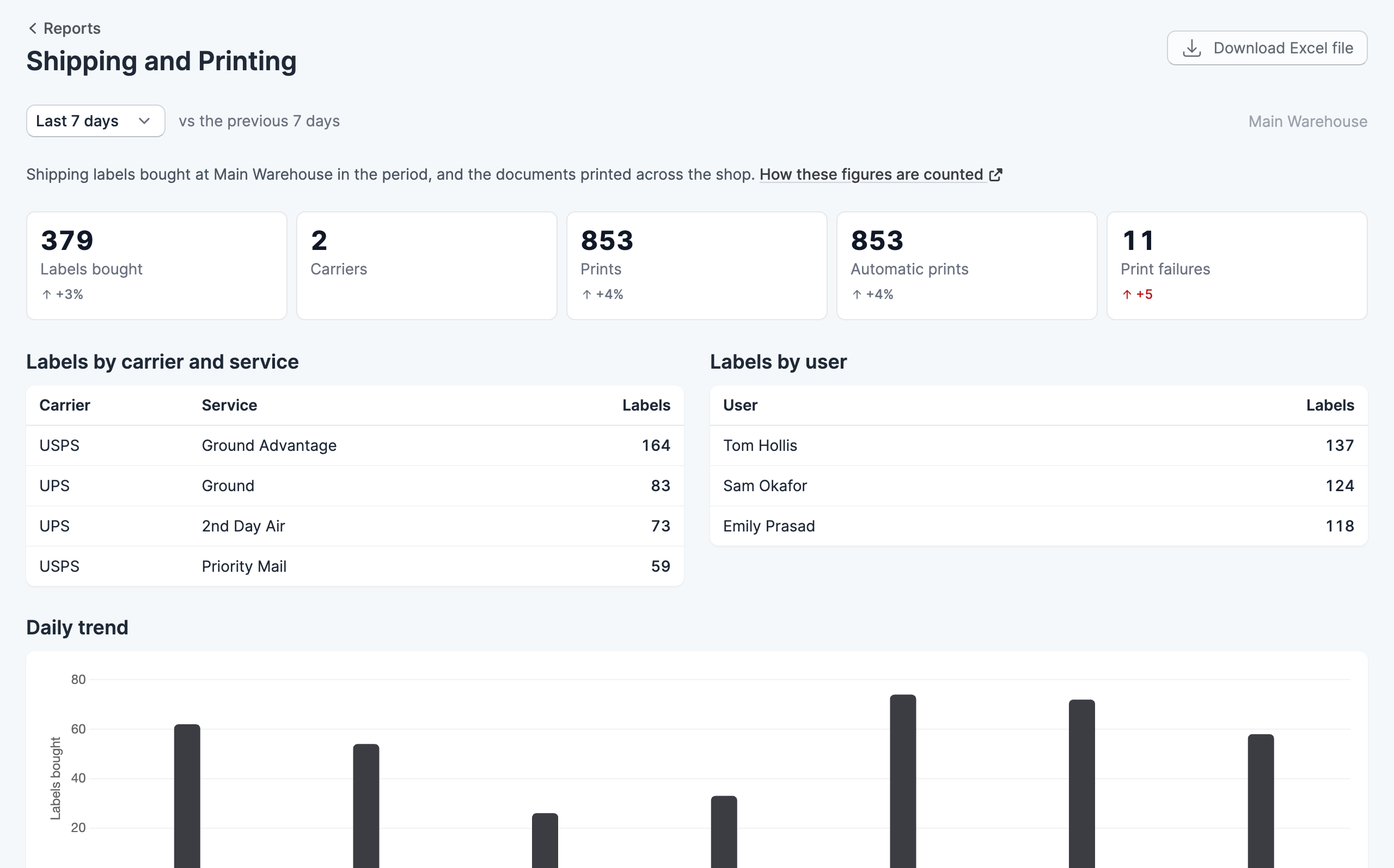
The shipping and printing report shows the labels bought in a period and the documents printed, including any prints that failed.
Where to find it
Go to Reports, then click Shipping and Printing. You need the View reports permission to see it.
Choose a period from the menu at the top of the report: today, yesterday, or the last 7, 30 or 90 days. Most figures show how they changed against the period of the same length before it, and a change appears once there is an earlier figure to compare with. The report covers the location shown at the top right, which you can change from there.
Labels
If your plan includes shipping labels, the report shows the labels bought by carrier and service and by user, with a trend chart. These figures cover the current location.
Prints
Prints by template lists each document with how many times it was printed, how many of those prints were automatic, and how many failed. Below the table, the failures are grouped by reason, which helps you tell a printer problem from a problem with a document.
Prints are counted for the whole shop, because a print belongs to a station rather than a location. To see individual prints, open your print history.
Download the report
Click Download Excel file to save the figures as a spreadsheet.