Live board
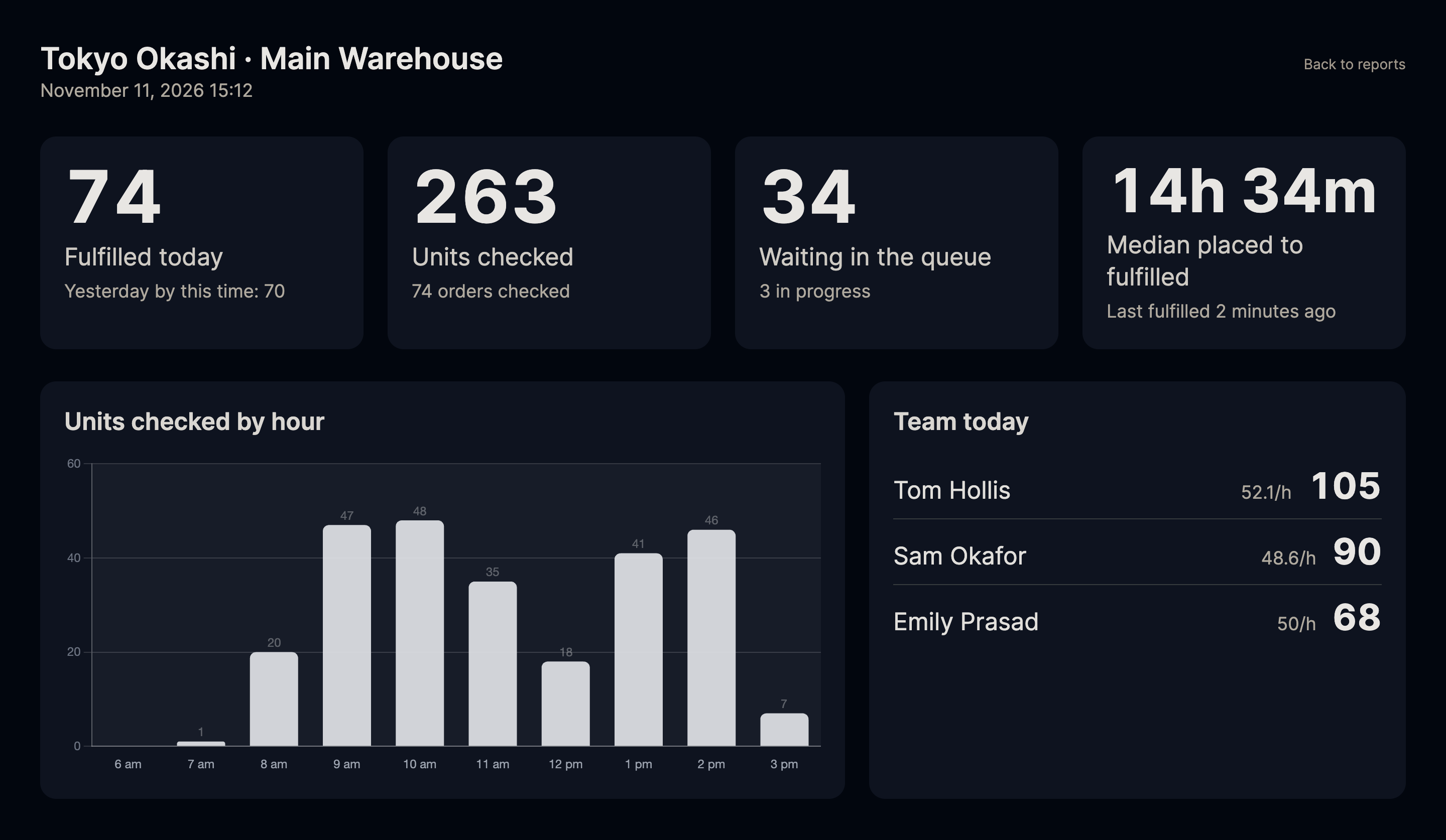
The live board is a page for a screen on the warehouse floor. It shows how today is going in figures big enough to read from across the room: what has been fulfilled against yesterday at the same time, what has been checked, what is waiting, and how the day has built up hour by hour. It refreshes itself every minute, so it can be left running.
Setting it up
Open Scanpacker on the computer or TV stick connected to the screen, go to Reports, then click Live Board. The page has no navigation, so switch it to full screen with your browser’s full-screen command (F11 on most browsers). To get back to Scanpacker, click Back to reports in the corner.
The board needs a signed-in user with the View reports permission, because it shows the same figures as the reports. If the screen is somewhere customers or visitors can see, sign it in as a user of its own rather than as a manager, so that leaving it running doesn’t leave a manager’s session open. A custom role with only View orders and View reports is enough for it. See roles and permissions.
The board covers the location the signed-in user is working at.
What it shows
- Fulfilled today, with yesterday’s count up to the same time of day underneath, so the comparison is like for like.
- Units checked today, and how many orders that was.
- Waiting in the queue, and how many orders are in progress.
- Median placed to fulfilled for today’s fulfillments, and how long ago the last one was.
- Units checked by hour, as a bar chart from 6am, or from the first hour anyone checked something.
Showing the team’s figures
By default the board shows totals only. To add a list of each person’s units for the day, turn on Show team figures to everyone under Settings > Checking / Fulfillment > Reports. The list is ordered by units, most first, with each person’s units per active hour beside it.
The same setting decides what people see of each other elsewhere. When it is off, each person sees only their own figures, in the Your day card on their dashboard, and only users with the View reports permission can see the team productivity report. Turn it on only if your team is happy to see their numbers side by side.
Related documentation
- Operations overview — the period at a glance, with comparisons
- Team productivity report — each person’s figures over a period