Exceptions
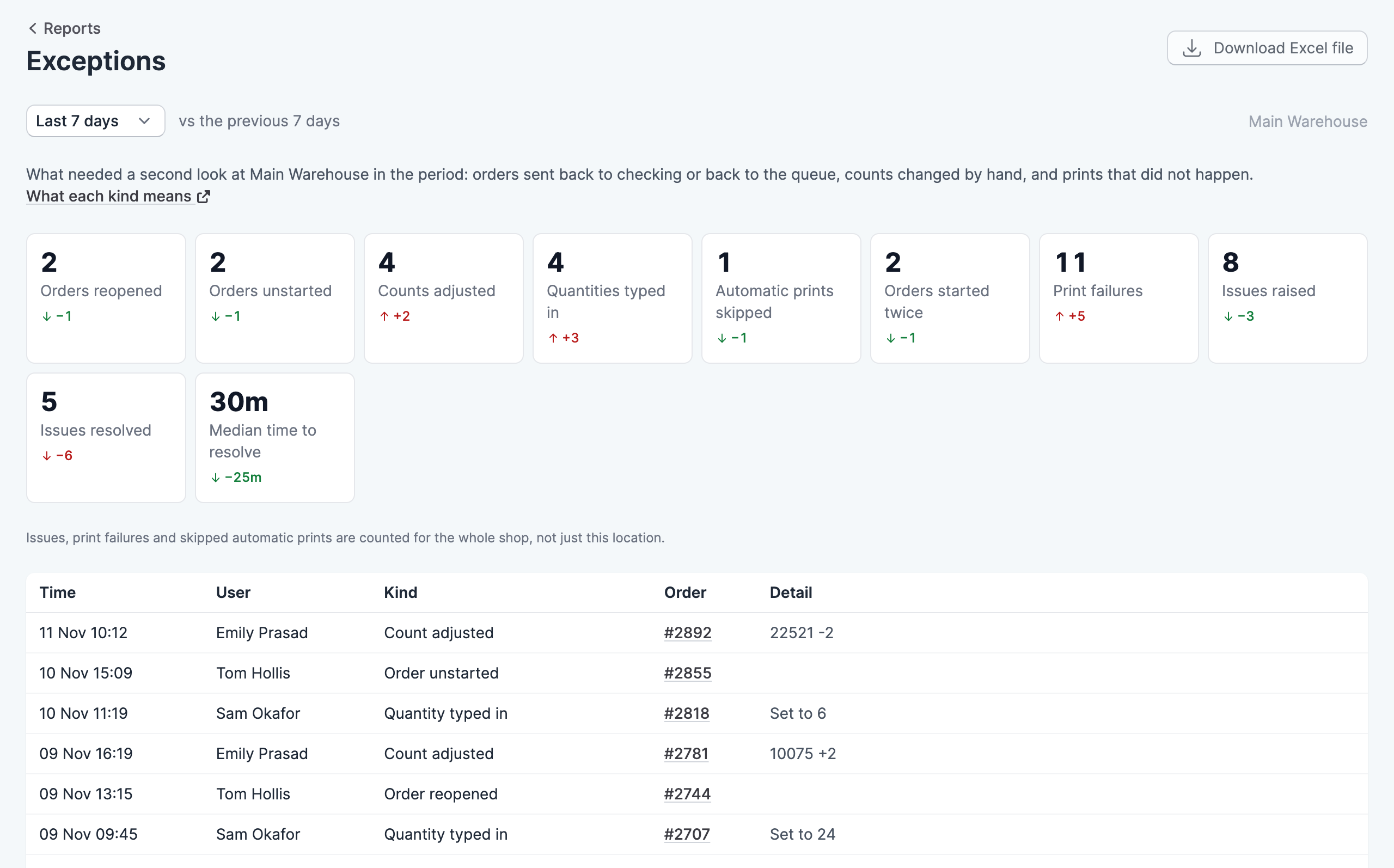
The exceptions report lists what needed a second look in a period, such as orders sent back to checking, counts changed by hand, and prints that didn’t happen.
Where to find it
Go to Reports, then click Exceptions. You need the View reports permission to see it.
Choose a period from the menu at the top of the report: today, yesterday, or the last 7, 30 or 90 days. Most figures show how they changed against the period of the same length before it, and a change appears once there is an earlier figure to compare with. The report covers the location shown at the top right, which you can change from there.
What each kind means
- Orders reopened are orders sent back to checking after being checked.
- Orders unstarted are orders sent back to the queue after being started.
- Counts adjusted are checked quantities that someone changed by hand.
- Quantities typed in are quantities entered rather than scanned.
- Automatic prints skipped are automatic prints that didn’t happen, for example because the printer was offline.
- Orders started twice are orders started more than once in the period.
- Print failures are prints that were attempted but failed.
The report also counts the order issues raised and resolved, and the median time taken to resolve one. Order issues, print failures and skipped automatic prints are counted for the whole shop rather than for one location.
The list
Below the figures, each exception is listed with the time, the user, the kind and the order. Click one of the first five kinds to show only that kind in the list, and click it again to show them all. Click an order to open it.
Download the report
Click Download Excel file to save the figures as a spreadsheet.