Switching users with a PIN
When several people share one phone or packing bench, each person can switch to their own account with a 4-digit PIN. The device stays signed in to your store, so nobody has to type a password between orders, and the activity log still shows who checked each order.
PIN switching works in the Scanpacker iOS and Android apps and in a browser signed in outside the Shopify admin. It doesn’t replace signing in: someone has to sign in properly on the device first.
PIN switching comes with the Pro and Business plans. At least one of these must also be on under Settings > Users > Edit settings:
- Direct external sign-in
- External session from embedded app
Who can use a PIN
A PIN is short, so Scanpacker only lets it sign in to roles that can’t change how your store is set up. A role can use a PIN only if it doesn’t have any of these permissions:
- Manage settings
- Manage automation
- Manage carriers
- Manage templates
- Manage roles
- Manage user login access
- Manage subscription
- Import data
- Export data
The built-in Packer, Operator, Supervisor, and Viewer roles can all use a PIN. Administrator and Manager can’t, so people with those roles sign in with their password. See roles and permissions.
Give someone a PIN
You’ll need the Manage user login access permission.
- Go to Settings > Users and click Edit next to the person. For a new person, click New local user.
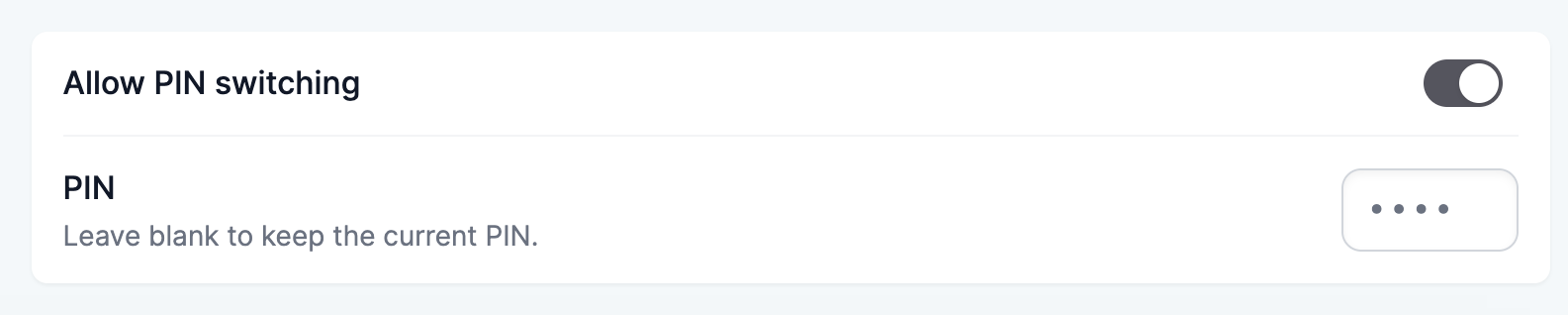
- Under PIN switching, tick Allow PIN switching.
- Enter a 4-digit PIN. Repeated digits, runs like 1234, and the most common PINs aren’t accepted.
- Click Save changes.
Tell the person their PIN. It’s a starting PIN: the first time they switch in with it, Scanpacker asks them to choose one of their own, so nobody else knows the PIN they use. Scanpacker can’t show a PIN later, but you can set a new starting PIN anytime by editing the user.
A local user can sign in with only a PIN. When you create one, untick Enable external login and leave the handle and password blank.
Set up a shared device
- Sign in on the device with a handle and password, or hand over from the Shopify admin. See ways to access Scanpacker.
- Open the menu and choose Switch user.
The device now shows the PIN screen. Each person taps their name and enters their PIN.
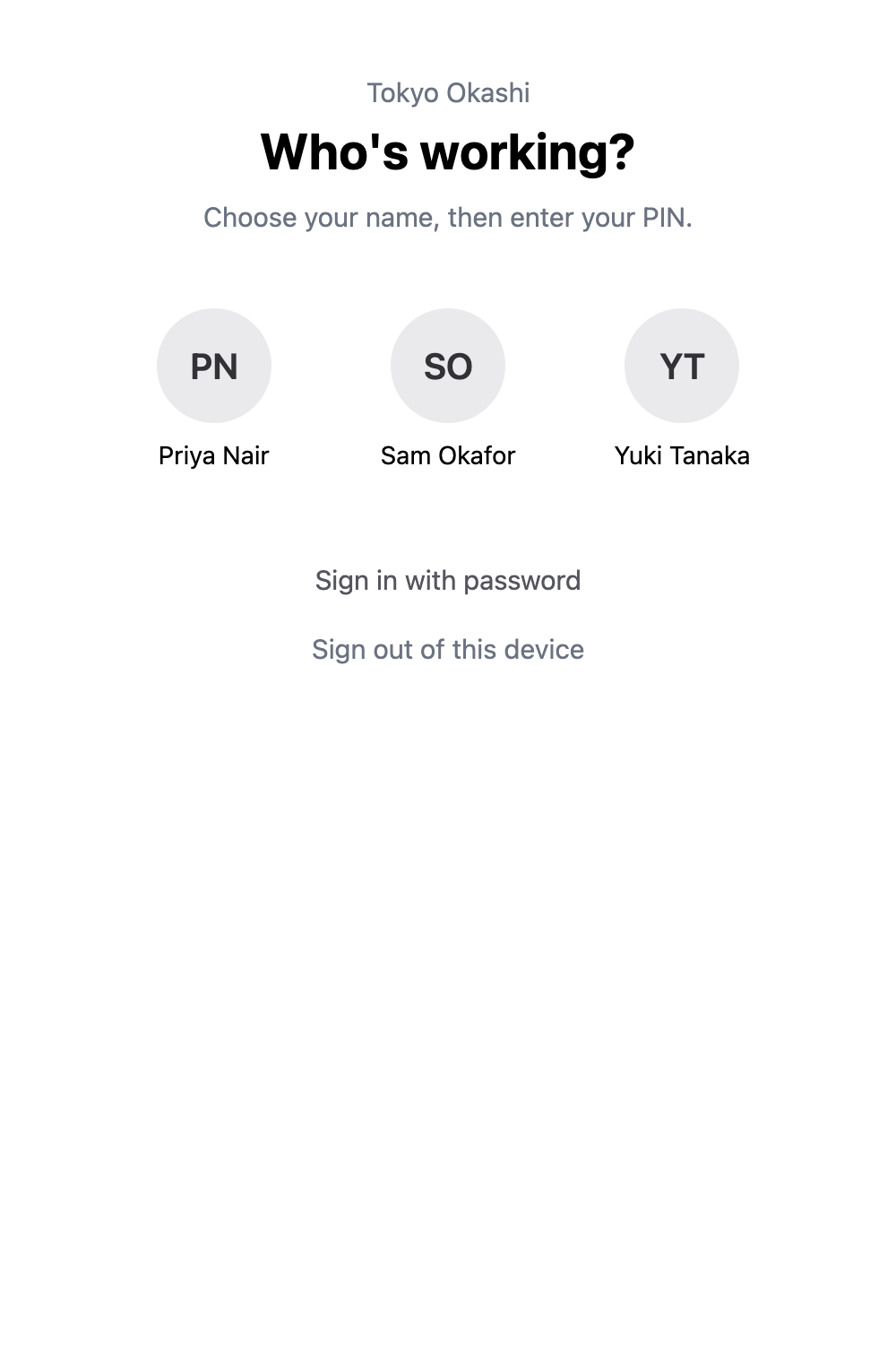
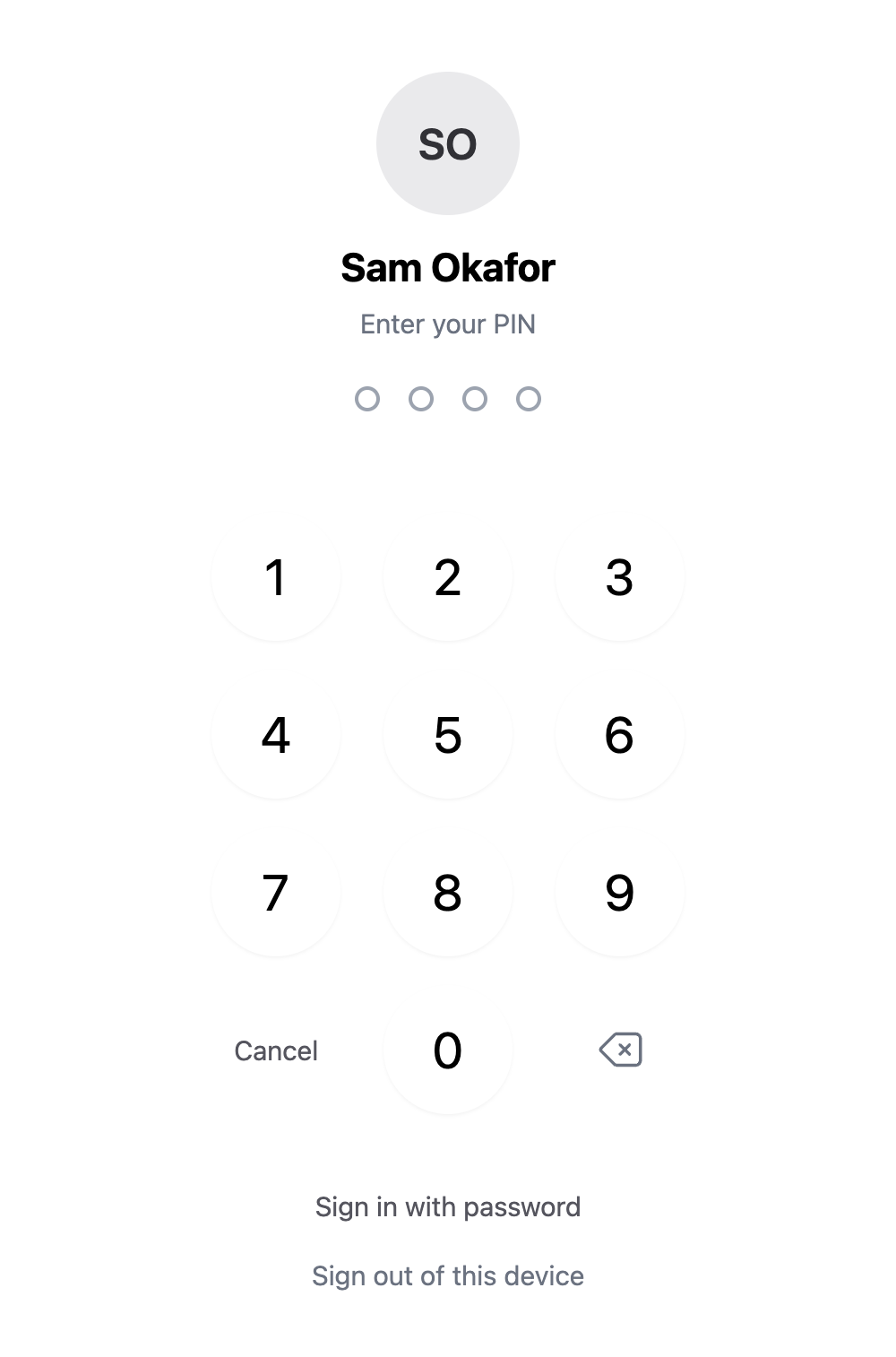
Switch user
When you’re done, choose Switch user from the menu. The device goes back to the PIN screen for the next person.
If nobody uses the device for a while, it goes back to the PIN screen on its own. You can choose how long it waits, or turn this off, under Settings > Users > Edit settings > Lock an idle device. This only applies to someone who switched in with a PIN.
The device keeps its location and its station when people switch.
Change your PIN
To change your own PIN, open your preferences from the menu and choose Change PIN. The same rules apply as when a PIN is first set.
Wrong PINs
After five wrong PINs, that person can’t use their PIN for 15 minutes. They can still sign in with a password if they have one.
After 20 wrong PINs for one person, counted across lockouts, Scanpacker turns PIN switching off for them and emails your store. If they’ve forgotten their PIN, edit the user, set a new starting PIN and tick Allow PIN switching again. If they haven’t, someone may have been trying to guess it.
If 20 wrong PINs are entered on one device, for anyone, Scanpacker signs the device out. Someone then has to sign in on it with a password before PINs work there again. Signing in with a password clears the device’s count.
When a device needs a password again
A device stops accepting PINs, and someone has to sign in on it with a password again, when:
- Nobody has used it for three days.
- Nobody has signed in on it with a password for 30 days. Using it with a password at any point keeps it going.
- The person who signed it in is archived, or is a local user whose external login is turned off.
See and forget devices
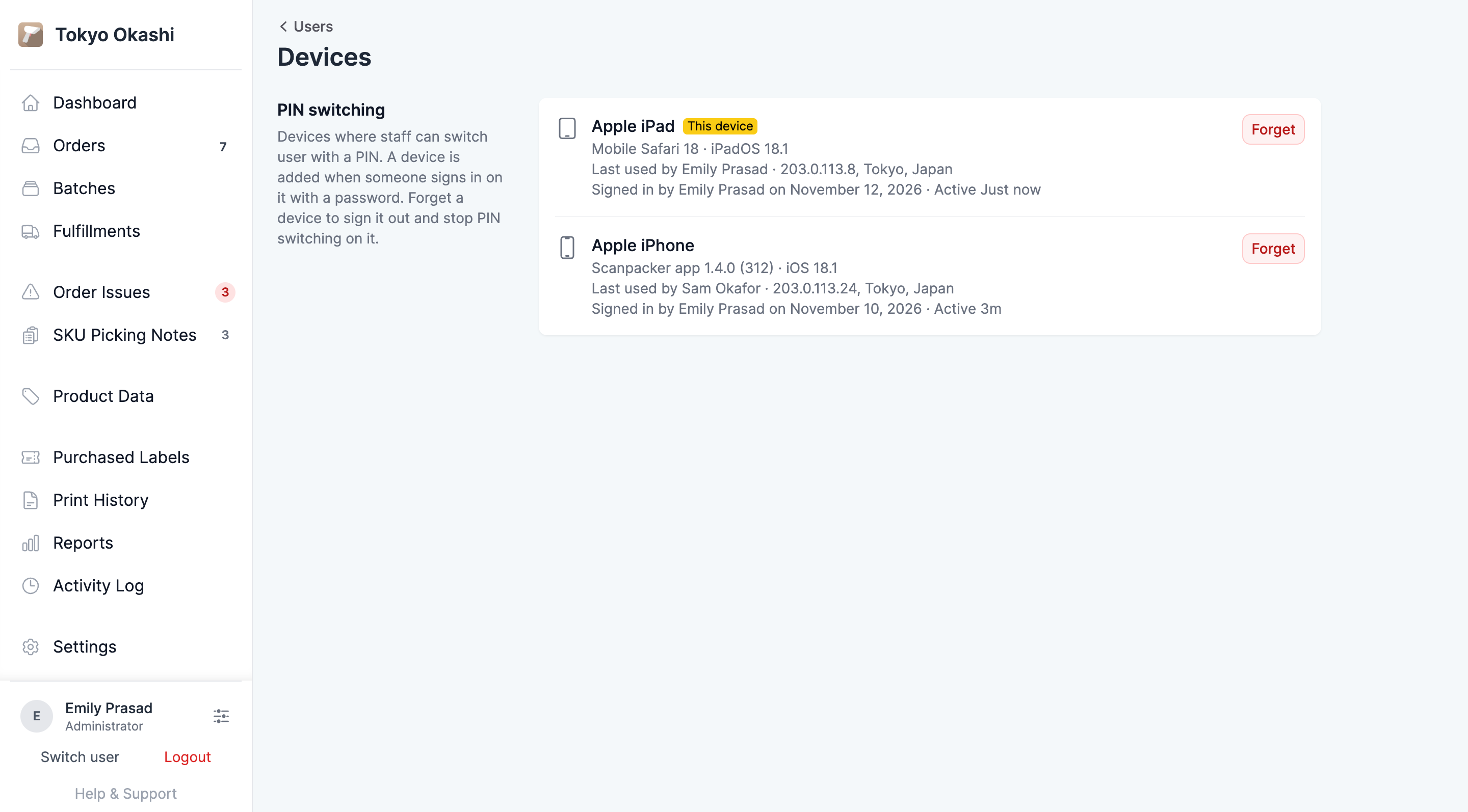
To see every device that can use PIN switching, go to Settings > Users and click View devices. You’ll need the Manage user login access permission.
For each device, the list shows:
- What it is, such as an iPhone or a Mac, and the browser or app version.
- Who is using it now, or Locked if it’s on the PIN screen.
- Its IP address and rough location.
- Who signed it in, and when.
- When it was last active.
The device you’re using is marked This device.
If a device is lost, or you no longer use it, click Forget. The device is signed out straight away, and nobody can switch in with a PIN on it until someone signs in on it with a password.
Below the devices, the page lists the wrong PINs entered in the last seven days: when, for whom, and on which device, and whether it locked the person out or turned their PIN off. A run of wrong PINs for one person may be someone trying to guess their PIN.
Sign a device out
You can also sign a device out from the device itself:
- On the PIN screen, choose Sign out of this device. In the iOS and Android apps it’s in the ••• menu.
- When signed in, choose Logout from the menu.
Either way, someone has to sign in with a password again before anyone can switch in with a PIN.
Questions?
If you need a hand setting up shared devices, get in touch.